
Activepieces is an open source workflow automation platform that helps teams build, run, and manage automations without relying on proprietary SaaS tools. It is commonly used to connect applications, automate internal processes, and orchestrate workflows across APIs and services in a self-hosted environment.
With Northflank, you can deploy Activepieces in minutes using the Activepieces stack template or configure everything manually. Northflank handles scaling, networking, databases, and security so you can focus on building automation flows instead of managing infrastructure.
If you are new to the platform and wondering what is Activepieces, it is a self hosted alternative to tools like Zapier and Make that gives you full control over your data and execution environment.
Activepieces lets you:
- Build workflows using a visual flow editor
- Trigger automations from webhooks, schedules, or events
- Connect APIs and third party services
- Execute workflows reliably in the background
- Store credentials and execution data securely
Because Activepieces is open source, teams can run it privately, customize integrations, and scale automation workloads without vendor lock in.
Before getting started, create a Northflank account.
- Deploying Activepieces with a one click template on Northflank
- Deploying Activepieces manually on Northflank
What is Northflank?
Northflank is a platform that allows developers to build, deploy, and scale GPU workloads, services, databases, jobs, and background workers through a self-service workflow. It provides a production-ready abstraction over Kubernetes, enabling standardized releases with secure defaults while still allowing deep customization.
The easiest way to run Activepieces on Northflank is by using the Activepieces stack template. It provisions everything required to run Activepieces in production with best practice defaults already configured.
This option is ideal if you want to get up and running quickly without manually wiring databases, queues, secrets, and services.
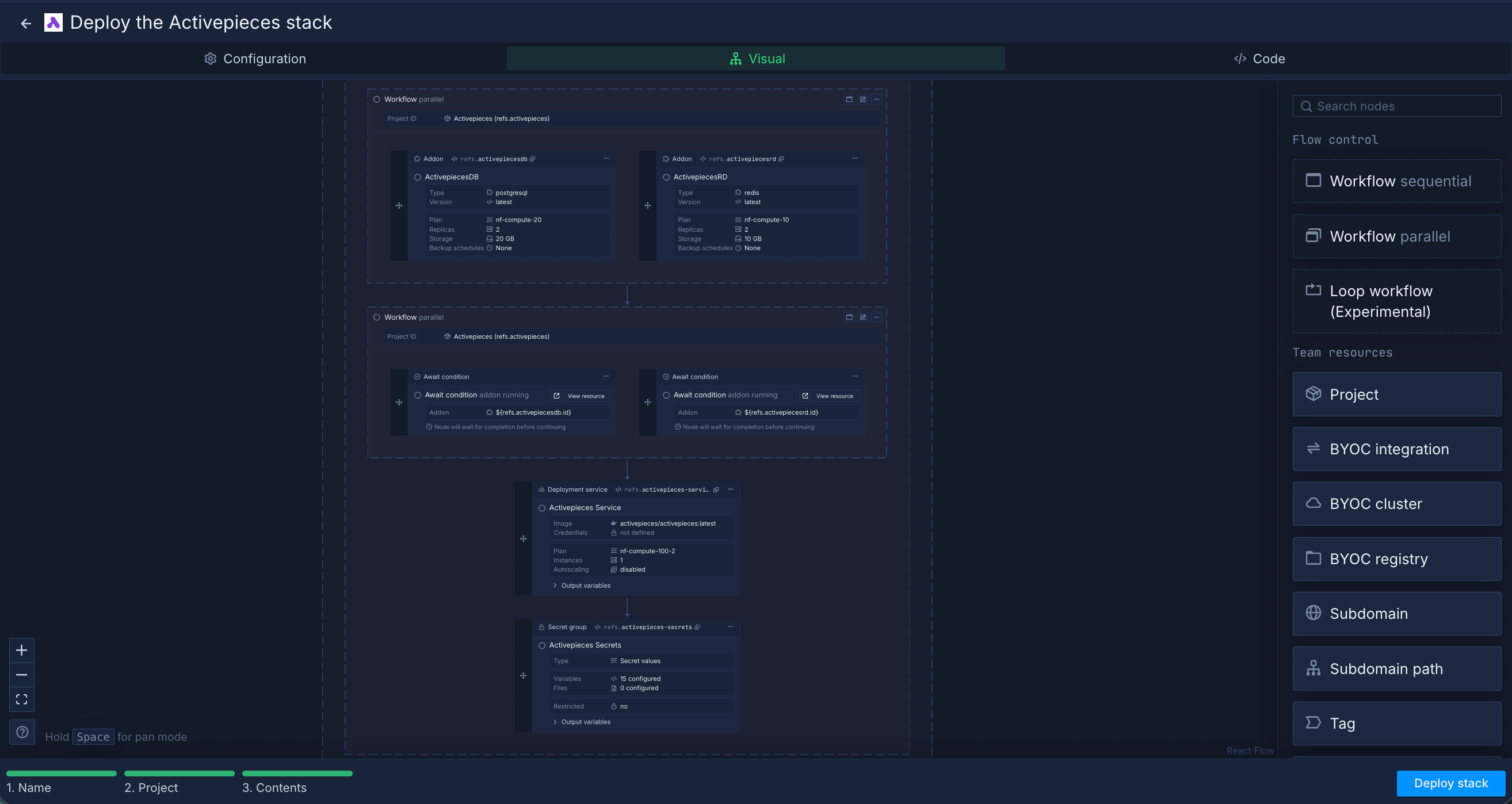
The Activepieces stack template includes:
- A PostgreSQL addon for storing users, flows, credentials, and execution data
- A Redis addon for background execution and queue management
- A secret group with secure environment variables and encryption keys
- A deployment service running the official Activepieces Docker image
This setup gives you a fully functional, self hosted Activepieces instance ready for real world automation workloads.
- Create an account on Northflank
- Open the Activepieces stack template
- Click
Deploy stackto provision the project, database, Redis, secrets, and service - Wait for the deployment to complete and click on
view resources - Open the Activepieces service from your dashboard
- Access the generated public domain to reach the Activepieces UI
Once deployed, you can begin creating automation flows immediately.
If you prefer configuring everything yourself or want to customize compute plans, networking, or execution settings, you can deploy Activepieces manually.
You can also modify the one click template if you want to extend or customize the default deployment.
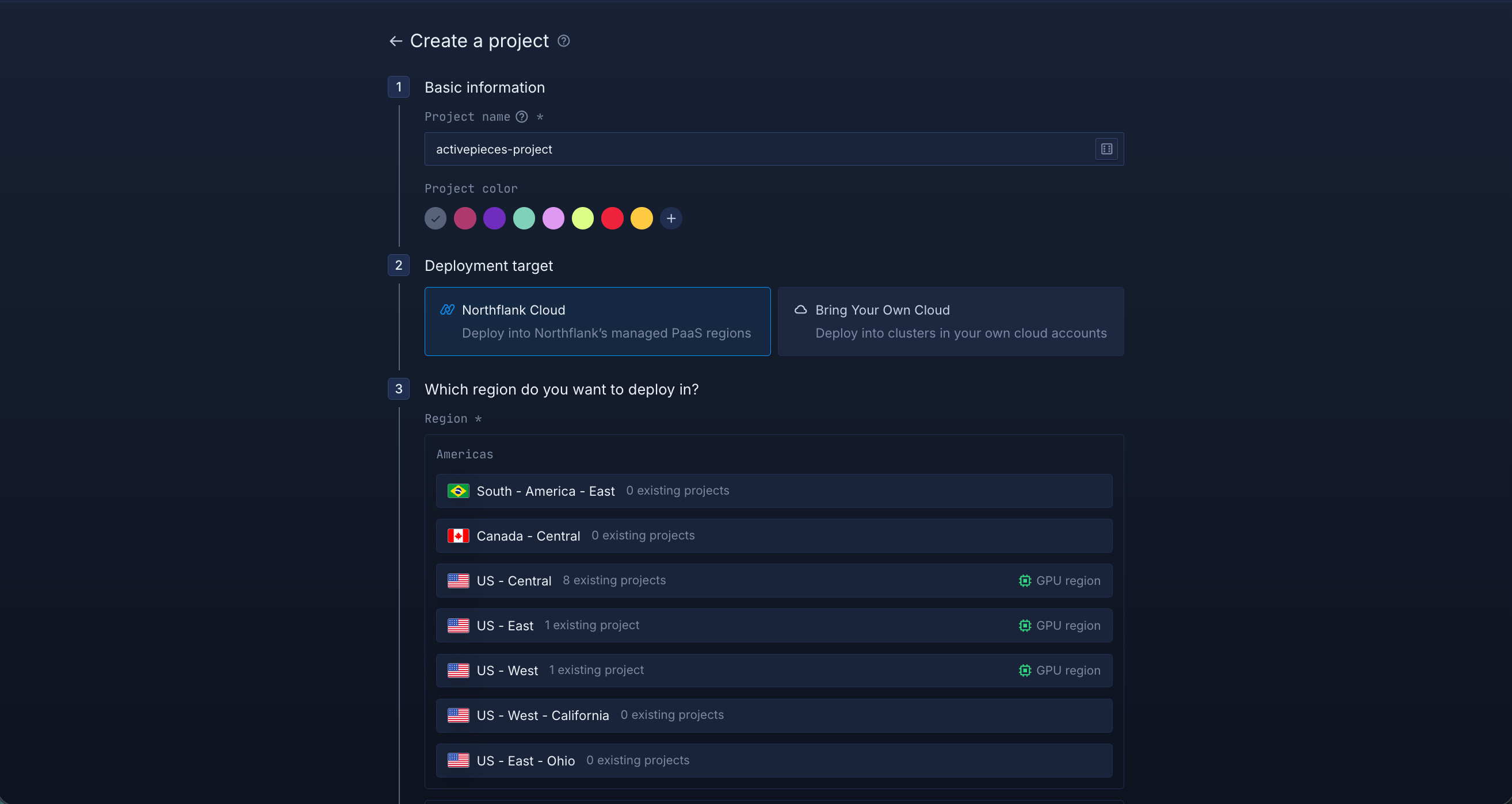
Log in to your Northflank dashboard, then click the “Create new” button in the top right corner. Select “Project” from the dropdown.

Projects serve as workspaces that group together related services and addons, making it easier to manage automation infrastructure.
You’ll need to fill out a few details before moving forward.
-
Enter a project name, such as
activepieces-project, and optionally pick a color for quick identification in your dashboard. -
Select Northflank Cloud as the deployment target. This uses Northflank’s fully managed infrastructure, so you do not need to worry about Kubernetes setup or scaling.
(Optional) If you prefer to run on your own infrastructure, you can select Bring Your Own Cloud and connect AWS, GCP, Azure, or on-prem resources.
-
Choose a region closest to your users to minimize latency.
-
Click Create project to finalize the setup.
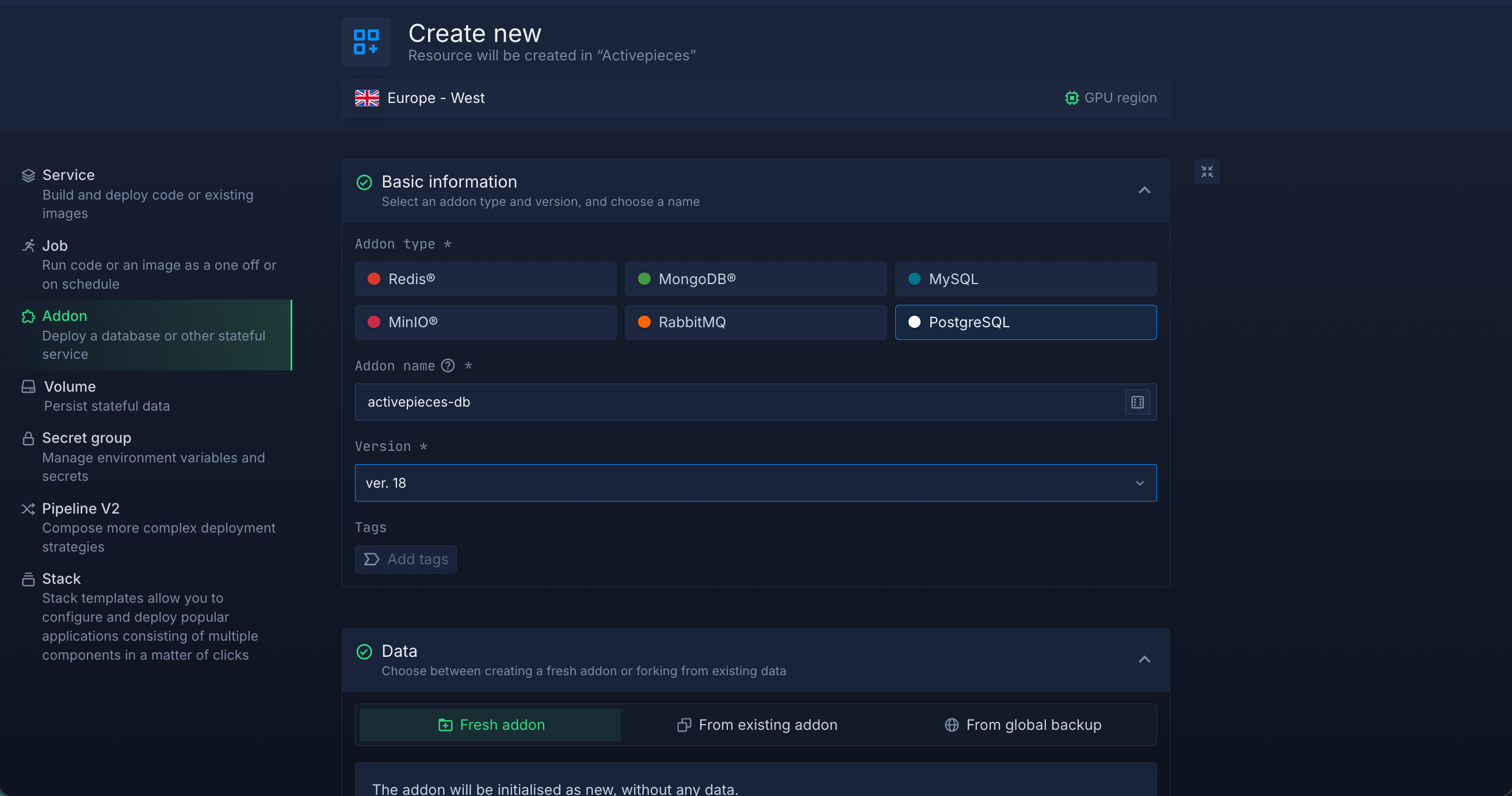
Inside your project, go to the Addons tab at the top menu and click "Create new addon". Then, select PostgreSQL as the Addon type, give it a descriptive name such as activepieces-db, select your preferred version, and choose a compute plan size.
- If you’re just testing or experimenting, the smallest option is cost-effective and sufficient.
- For production, we recommend starting with
nf-compute-50. This provides more resources and stability, ensuring Activepieces runs reliably under real workloads.
Once you’ve configured the settings, click Create addon to provision your database.
Repeat the same process to create your Redis addon.
Next, go to the Secrets tab and click Create Secret Group. Name it something easy to recognize, such as activepieces-secrets. This group will hold all the environment variables required by Activepieces. You can find the full list of supported variables in the Activepieces documentation.
To skip manual configuration, you can use the pre-configured values below
AP_JWT_SECRET="${fn.randomSecret(32)}"
AP_ENVIRONMENT="prod"
AP_FRONTEND_URL="https://${refs.activepieces-service.ports.0.dns}"
AP_ENCRYPTION_KEY="${fn.randomSecret(32, hex)}"
AP_EXECUTION_MODE="UNSANDBOXED"
AP_SIGN_UP_ENABLED=false
AP_TELEMETRY_ENABLED=false
AP_NODE_EXECUTABLE_PATH="/usr/local/bin/node"
AP_TEMPLATES_SOURCE_URL="https://cloud.activepieces.com/api/v1/templates"
AP_FLOW_WORKER_CONCURRENCY="10"
AP_WEBHOOK_TIMEOUT_SECONDS="30"
AP_SANDBOX_RUN_TIME_SECONDS="600"
AP_TRIGGER_DEFAULT_POLL_INTERVAL="5"
AP_POSTGRES_USE_SSL=true
AP_POSTGRES_URL="postgresql://${AP_POSTGRES_USERNAME}:${AP_POSTGRES_PASSWORD}@${AP_POSTGRES_HOST}:${AP_POSTGRES_PORT}/${AP_POSTGRES_DATABASE}"
Notes about these values:
AP_JWT_SECRETandAP_ENCRYPTION_KEYare auto-generated using Northflank'sfn.randomSecret()helper, so you don't need to set these manually.AP_FRONTEND_URLdynamically references the Activepieces service port DNS using Northflank'srefssyntax. This updates automatically when your service is deployed.AP_POSTGRES_URLis constructed from individual Postgres variables. Make sureAP_POSTGRES_USERNAME,AP_POSTGRES_PASSWORD,AP_POSTGRES_HOST,AP_POSTGRES_PORT, andAP_POSTGRES_DATABASEare all defined in your secret group or referenced from your database addon.AP_EXECUTION_MODEis set toUNSANDBOXEDfor simplicity. If you need stricter isolation for flow execution, refer to the Activepieces documentation for sandboxed mode requirements.AP_SIGN_UP_ENABLEDis set tofalseby default. Change this totrueif you want to allow new users to register on your instance.AP_POSTGRES_USE_SSLis set totrueto ensure encrypted connections to your database.
Link the PostgreSQL and Redis addons to your secret group
Northflank addons like PostgreSQL and Redis expose connection details such as username, password, host, and ports.
Instead of copying these values manually into your secrets, you can link each addon directly to your secret group.
This way, whenever credentials are rotated, your Activepieces service automatically receives the updated values.
Under the Linked addons section:
-
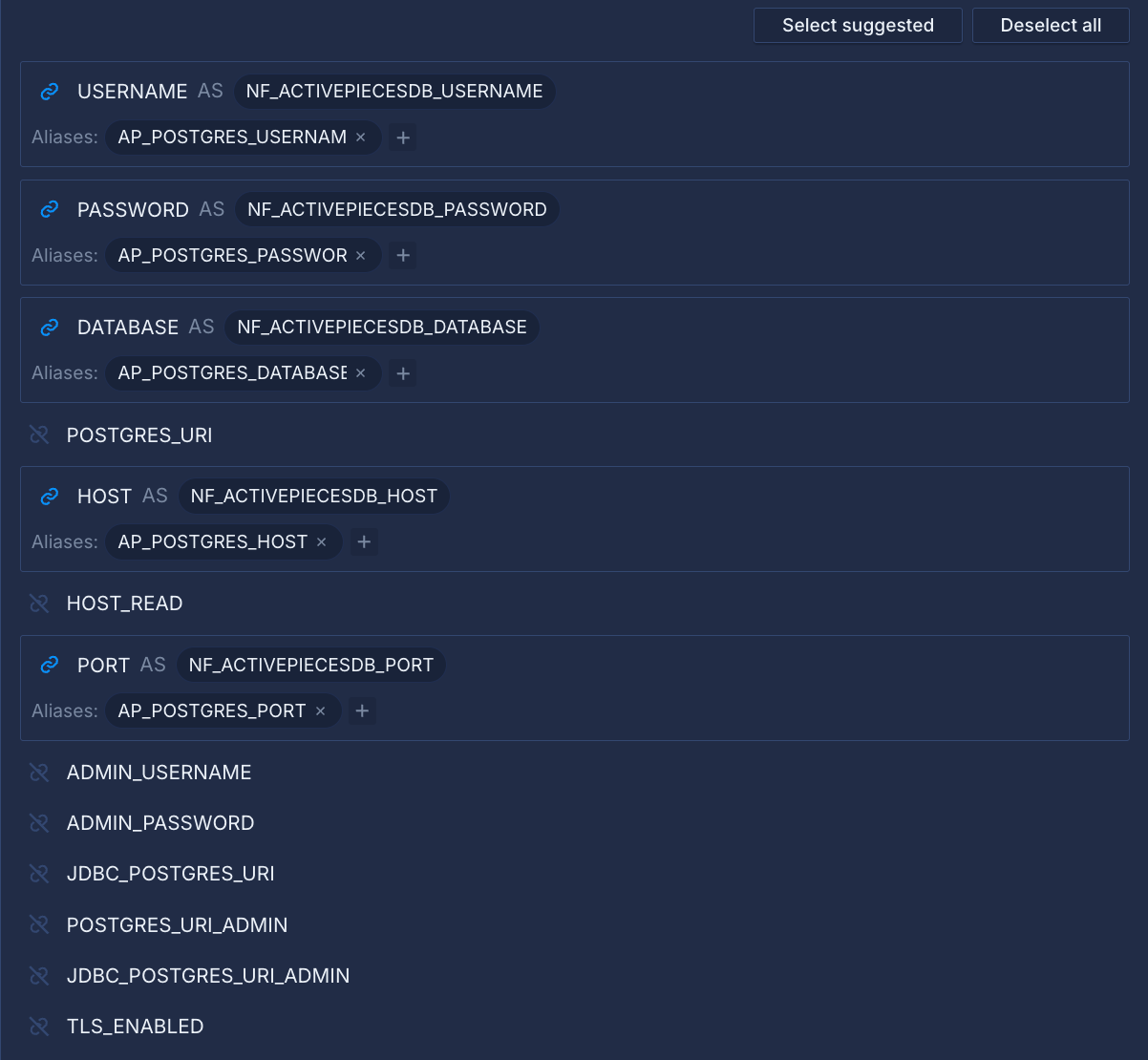
For PostgreSQL, click Configure and map the following
HOST→AP_POSTGRES_HOSTPORT→AP_POSTGRES_PORTDATABASE→AP_POSTGRES_DATABASEPASSWORD→AP_POSTGRES_PASSWORDUSERNAME→AP_POSTGRES_USERNAME
-
For Redis, link
REDIS_MASTER_URL→AP_REDIS_URL
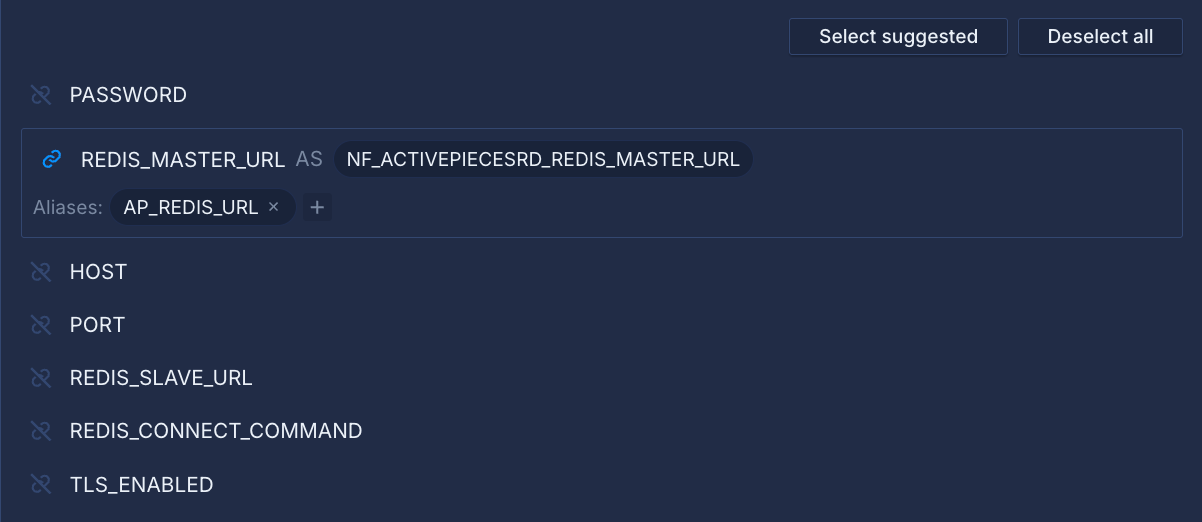
Finally, click Create secret group to save everything.
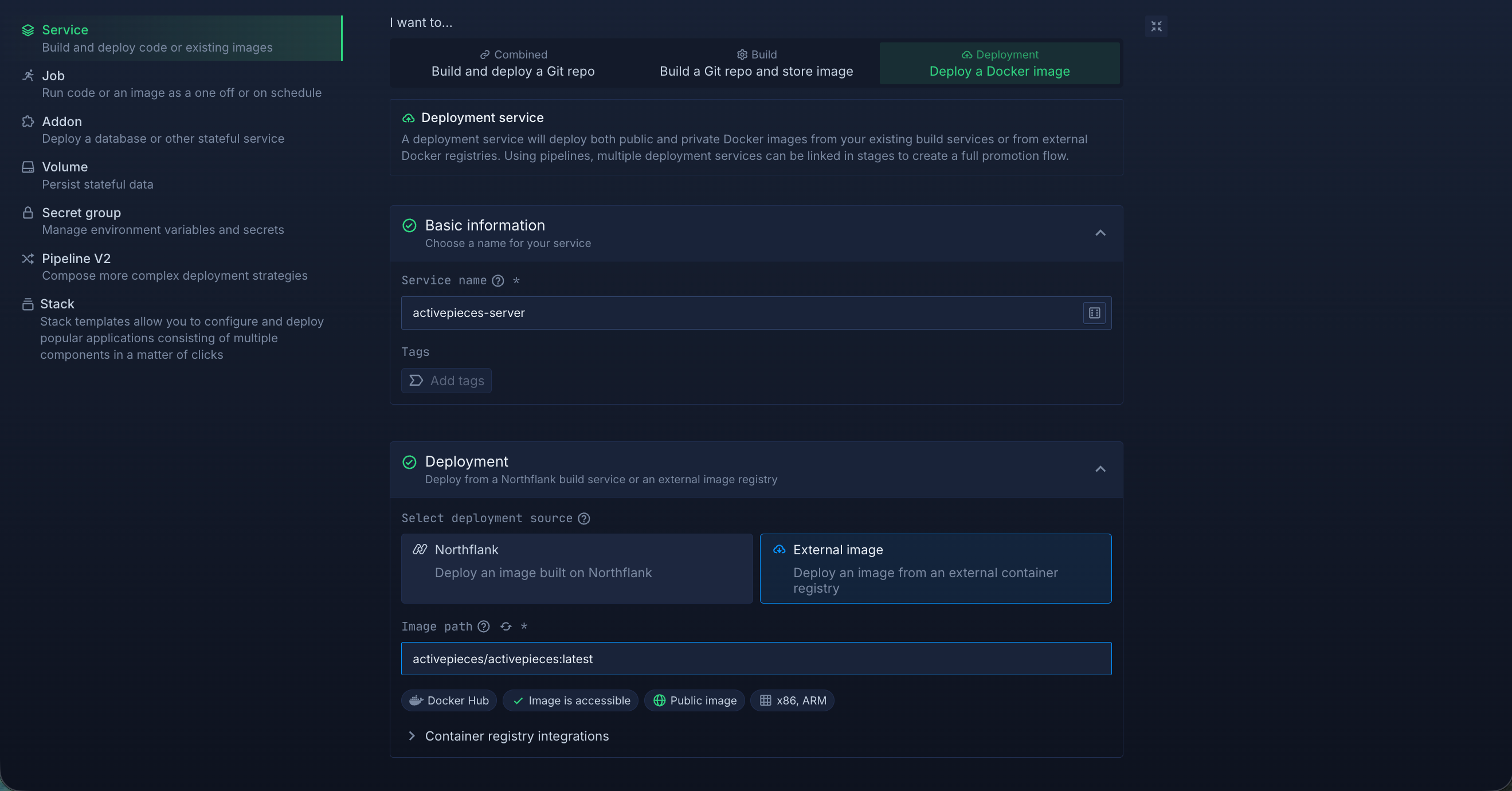
Within your project, navigate to the Services tab in the top menu and click “Create New Service.” Select Deployment and give your service a name such as activepieces-server.
For the deployment source, choose External image and enter the official Activepieces Docker image: activepieces/activepieces:latest
Select compute resources
Choose the compute size that best matches your workload:
- Small plans are fine for testing or lightweight usage.
- Larger plans are recommended for production, as Activepieces can be resource-intensive under real-world traffic.
The flexibility to adjust resources later means you can start small and scale up as your usage grows.
Set up a port so your app is accessible:
- Port:
80 - Protocol:
HTTP - Public access: enable this to let people access your Activepieces instance from the internet
Northflank will automatically generate a secure, unique public URL for your service. This saves you from having to manage DNS or SSL certificates manually.
Deploy your service
When you’re satisfied with your settings, click “Create service.” Northflank will pull the image, provision resources, and deploy Activepieces.
Once the deployment is successful, you’ll see your service’s public URL at the top right corner, e.g.: p01--activepieces-server--2g46yfn82szy.code.run
Deploying Activepieces on Northflank is the easiest way to run a modern, open source workflow automation platform with production ready infrastructure.
You now have a scalable, secure, and fully managed Activepieces environment with PostgreSQL, Redis, and background execution configured automatically, allowing you to focus on building and running automations without worrying about infrastructure.