
How to send logs to Sentry from Northflank
Sentry is an application monitoring platform that supports error tracking, performance monitoring, and structured log ingestion through OpenTelemetry (OTLP). Forwarding logs from Northflank to Sentry lets you search application logs alongside errors, traces, and releases from a single interface.
This guide shows you how to configure log forwarding from Northflank to Sentry.
Northflank forwards logs to Sentry using the OpenTelemetry Protocol (OTLP). To configure the integration, you'll need your project's OTLP Logs Endpoint and Public Key from Sentry.
In Sentry, navigate to:
Settings → Projects → [your project] → Client Keys (DSN).
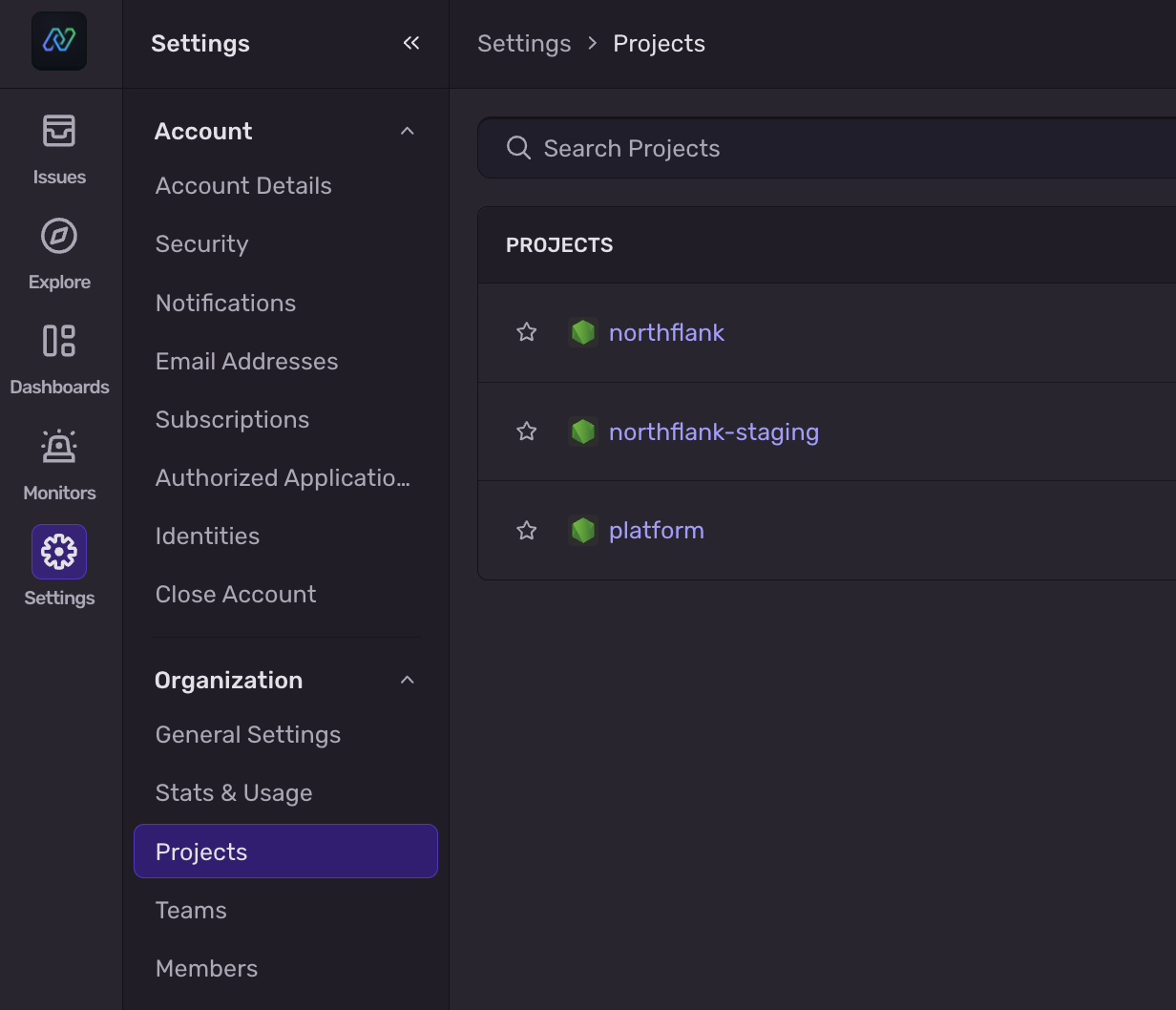
Open the OpenTelemetry section of the DSN details.
Here you'll find:
- OTLP Logs Endpoint (an HTTPS URL ending in
/otlp/v1/logs) - Public Key (listed under OTLP Logs Endpoint Headers)
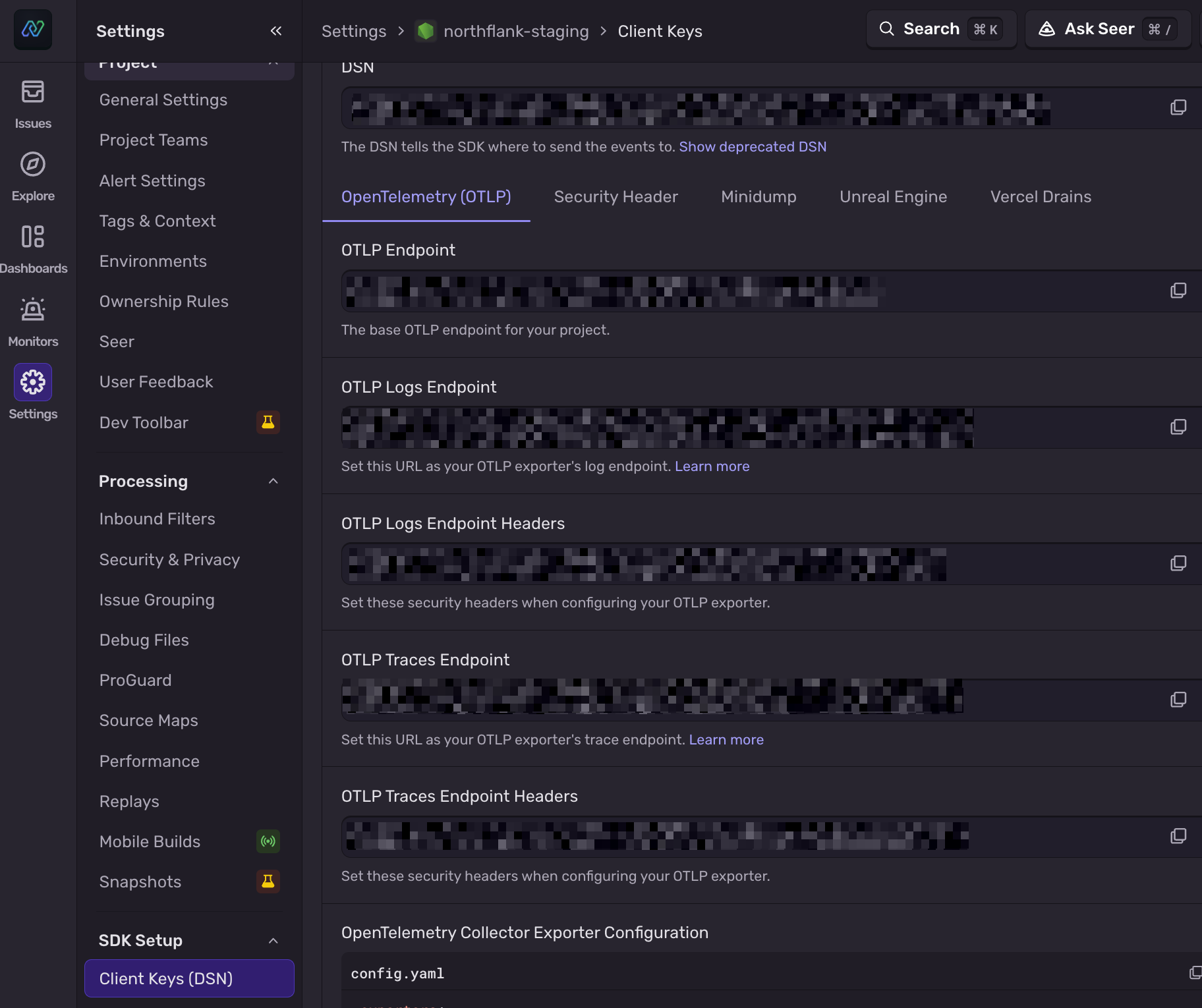
Keep both values handy. You'll use them when creating your Sentry log sink in Northflank.
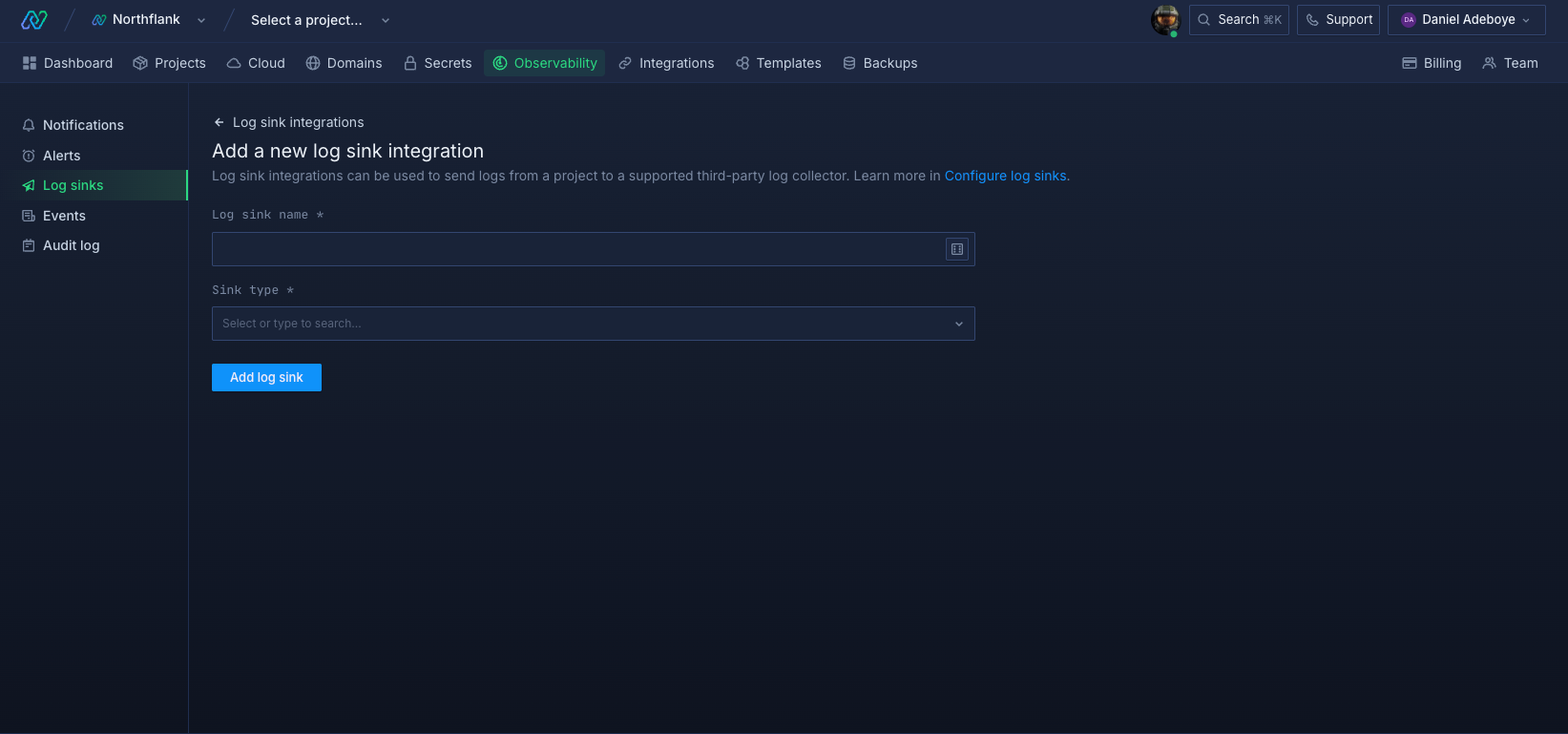
In your Northflank team dashboard, navigate to Observability and select Log sinks.
Click Add a log sink, enter a descriptive name, and select Sentry as the sink type.
Then enter the following:
- OTLP Logs Endpoint: The endpoint copied from your Sentry project.
- Public Key: The public key from the same Sentry project.
The endpoint must be a valid HTTPS *.sentry.io OTLP endpoint.
By default, Northflank forwards logs from all projects in your account to Sentry.
To forward logs from specific projects only, expand Advanced options and select the projects you want to include.
Click Add log sink to save the log sink. Northflank will immediately begin forwarding logs to Sentry.
Before creating the sink, Northflank sends a validation log entry to verify that your credentials are correct.
You should see a log entry similar to Validating log sink credentials
If the validation succeeds, new application logs will begin appearing automatically in Sentry.
To view your logs in Sentry, navigate to:
Explore → Logs
or open the Logs tab for your project.
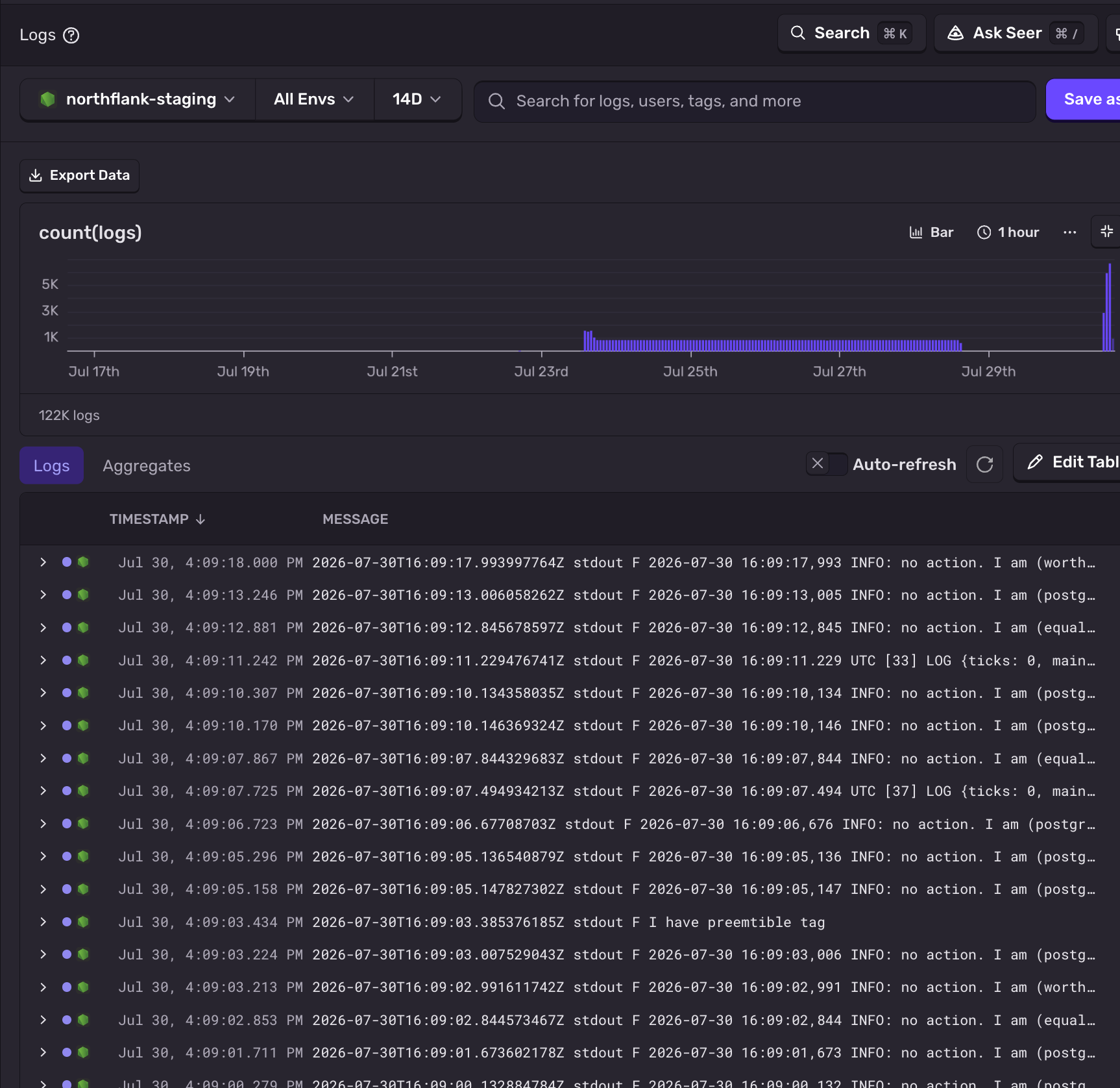
You can search and filter logs using attributes such as:
- Service name
- Environment
- Severity
- Log message
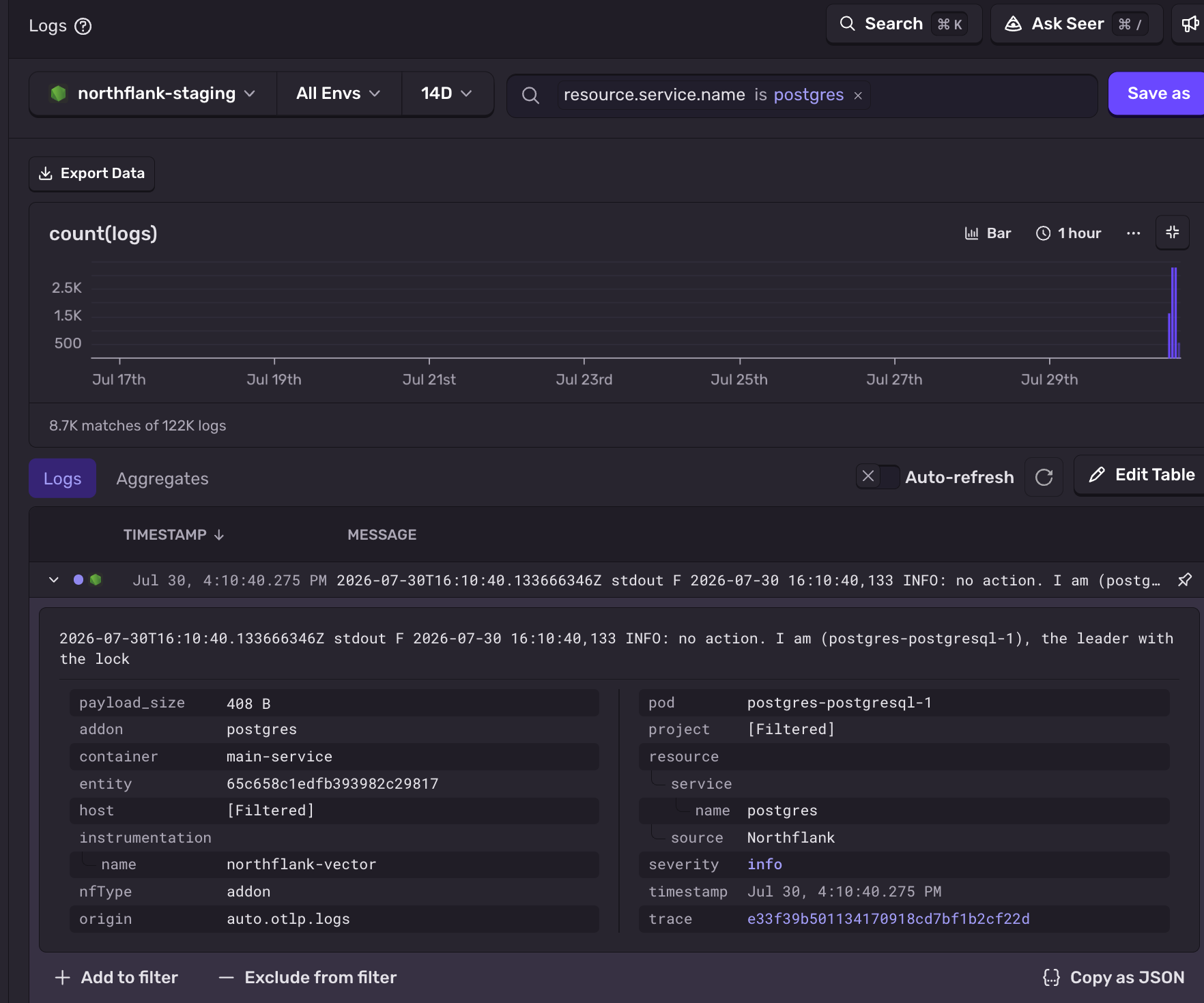
Because logs are stored alongside errors, traces, and releases, it's easy to investigate application issues from a single place.
To modify your sink, open the Log Sinks page and select the sink you created.
From there, you can:
- Update the OTLP endpoint or Public Key
- Change which projects forward logs
- Pause or resume the sink
Changes take effect immediately after saving.
Yes. Northflank includes a built-in Sentry log sink that forwards application logs directly to Sentry using OpenTelemetry (OTLP).
You'll need your project's OTLP Logs Endpoint and Public Key, both available from the Client Keys (DSN) page in your Sentry project.
Yes. When creating a log sink, use the Advanced options section to select which Northflank projects should forward logs.
Open Explore → Logs in Sentry, or use the Logs tab within your project to search and filter incoming log data.