
Rent GPUs for AI: How to rent GPU power in 2026
To rent GPUs for AI, choose hardware that fits your model, select a deployment environment, configure your software and storage, then run and test the workload. Include the supporting resources and idle time in your budget.
- For inference APIs: Run a service that keeps your model available to applications, with authentication and enough capacity for concurrent requests.
- For training and batch processing: Run a job that saves its results and finishes when the work is complete.
- For GPU selection: Match memory, software compatibility, and performance to the workload before choosing the lowest hourly rate.
- For managed deployment: Northflank deploys GPU containers for model serving, training, and batch jobs, with persistent storage and autoscaling for inference services.
Deploy your model on rented GPU compute. Get started with Northflank, or request GPU capacity for your team’s hardware requirements.
Renting GPUs gives your team access to AI compute without purchasing and maintaining a GPU server. The practical decision is which configuration can run your model reliably, how you will access it, and what remains billable between experiments.
This guide covers GPU selection, rental costs, and a Northflank deployment walkthrough that serves a language model, tests a response, and explains how to stop the compute when you're finished.
You can rent GPU capacity through managed container platforms, cloud virtual machines, and hardware marketplaces. The difference is how much of the environment you operate yourself.
A GPU virtual machine suits workloads that need operating-system control. A marketplace gives you individual host configurations to evaluate. A managed container platform suits teams that want to deploy and scale GPU workloads without assembling the underlying orchestration system.
For containerised inference, training, and batch processing, Northflank provides GPU services and jobs with container deployment, persistent model storage, and service autoscaling. The walkthrough below uses Northflank's managed cloud.
If you're still choosing a provider, compare the cheapest cloud GPU providers. For a broader assessment of hardware and deployment capabilities, see our GPU cloud provider comparison.
Rent a GPU with enough memory for your model and its working data, then test whether it meets your throughput or training-time requirements. The most expensive accelerator is not automatically the most economical choice.
| Workload | Check before renting | Deployment approach |
|---|---|---|
| Small-model inference or experimentation | Model memory, supported precision, context length, and request concurrency | A single GPU service or development environment |
| Fine-tuning | Training method, batch size, activations, and optimiser memory | A job with persistent checkpoints |
| Production inference | Response latency, throughput, model-loading time, and peak demand | A service with measured scaling thresholds |
| Large-model or distributed training | Total memory, framework support, GPU interconnects, and allocation size | A deliberately configured multi-GPU workload |
NVIDIA's deep learning performance guide explains how batch size and compute or memory bottlenecks affect performance, helping you decide what to measure in a rental trial.
GPU memory, or VRAM, is separate from the host's system RAM. A model can fit in GPU memory while its loading process or data preparation still exhausts the container's system memory.
For language models, longer contexts and more simultaneous requests also consume memory. Reducing context length or concurrency may let a workload fit a smaller GPU, but only if it still meets your application's requirements. Our guide to choosing a GPU for AI covers the hardware decision in more detail.
GPU rental cost depends on the accelerator, resource allocation, time provisioned, storage, and data transfer. Compare the complete deployment cost rather than treating a GPU's hourly rate as the whole bill.
These Northflank managed-cloud GPU rates give you a starting point for estimating the accelerator portion:
| GPU | VRAM | GPU charge per hour |
|---|---|---|
| NVIDIA L4 | 24 GB | $0.80 |
| NVIDIA A100 | 40 GB | $1.42 |
| NVIDIA A100 | 80 GB | $1.76 |
| NVIDIA H100 | 80 GB | $2.74 |
| NVIDIA RTX PRO 6000 | 96 GB | $3.00 |
Prices are in USD, checked on 12 October 2026. These are GPU component rates. Review the complete GPU plan estimate, including its allocated CPU and RAM, plus persistent storage and applicable network charges. Availability depends on the region and required capacity.
For example, provisioning one H100 for 100 hours produces $274 in GPU charges, before the other resources. That is an arithmetic example, not an estimate of how long a particular model takes to train. A faster configuration can cost less overall if it completes the same work in fewer hours.
On Northflank's managed cloud, GPU billing is calculated by the second once provisioned. An idle running model still occupies resources; per-second billing does not mean you pay only when an inference request arrives.
Create a GPU-enabled project, deploy a compatible container image, assign its resources, and test the model through a protected endpoint. This example uses vLLM to serve Qwen/Qwen3-4B-Instruct-2507 for inference.
Before creating the service, have a Northflank account with at least $50 in account credit, a suitable GPU-enabled region, and a local terminal with curl for testing. GPU deployment requires that credit balance; the live resource estimate determines your workload's charges.
The steps follow the managed GPU deployment workflow. Image downloads, available capacity, and model initialisation affect startup time.
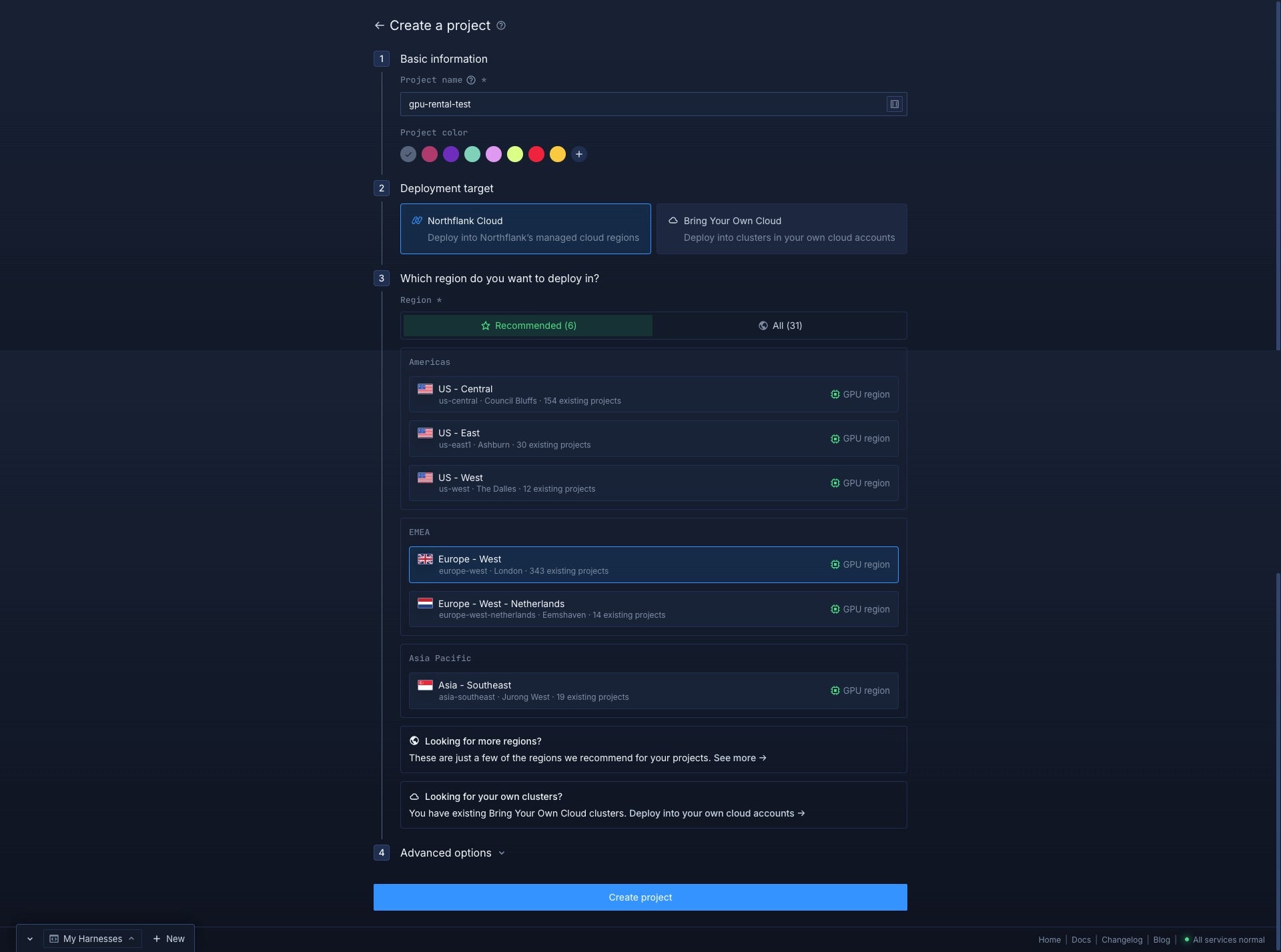
Create the project in a region that offers the GPU you intend to use.
In the Northflank dashboard, select Create Project, enter a name such as gpu-rental-test, choose Northflank Cloud, and select a region marked GPU enabled. Create the project.
Regional catalogues differ. Confirm the model you need is available before continuing.
Create a deployment service using an external container image.
Open the project's Services tab and select Create service. Name the service qwen-inference, choose the deployment service option, and select Deploy a Docker image and External image as its source. Enter:
vllm/vllm-openai:latestAllow Northflank to verify the image. This is the official vLLM image for an OpenAI-compatible model server. The vLLM Docker guide explains its runtime and cache configuration.
The latest tag changes over time. After validating the deployment, pin the working image version or digest before using it in a production release.
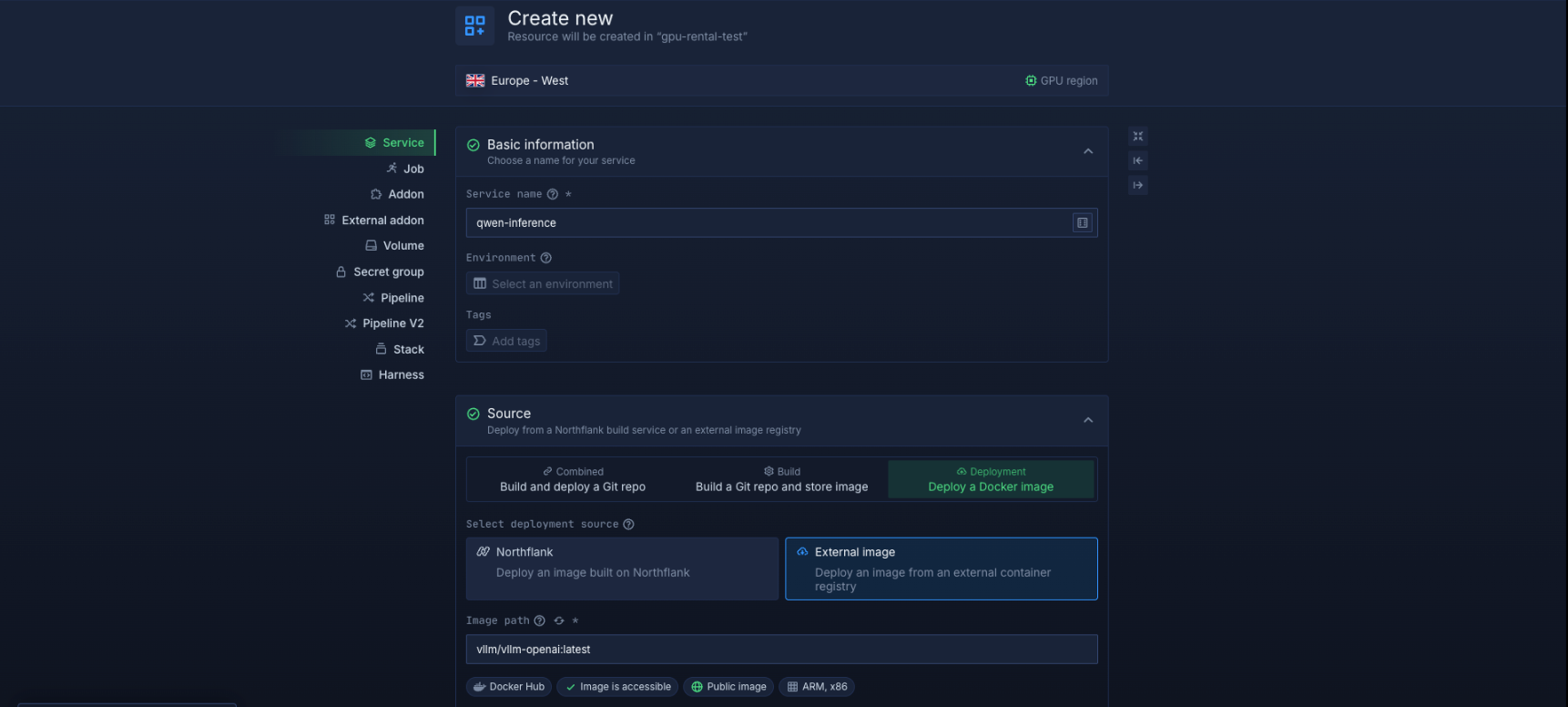
Assign one GPU to one service instance for this walkthrough.
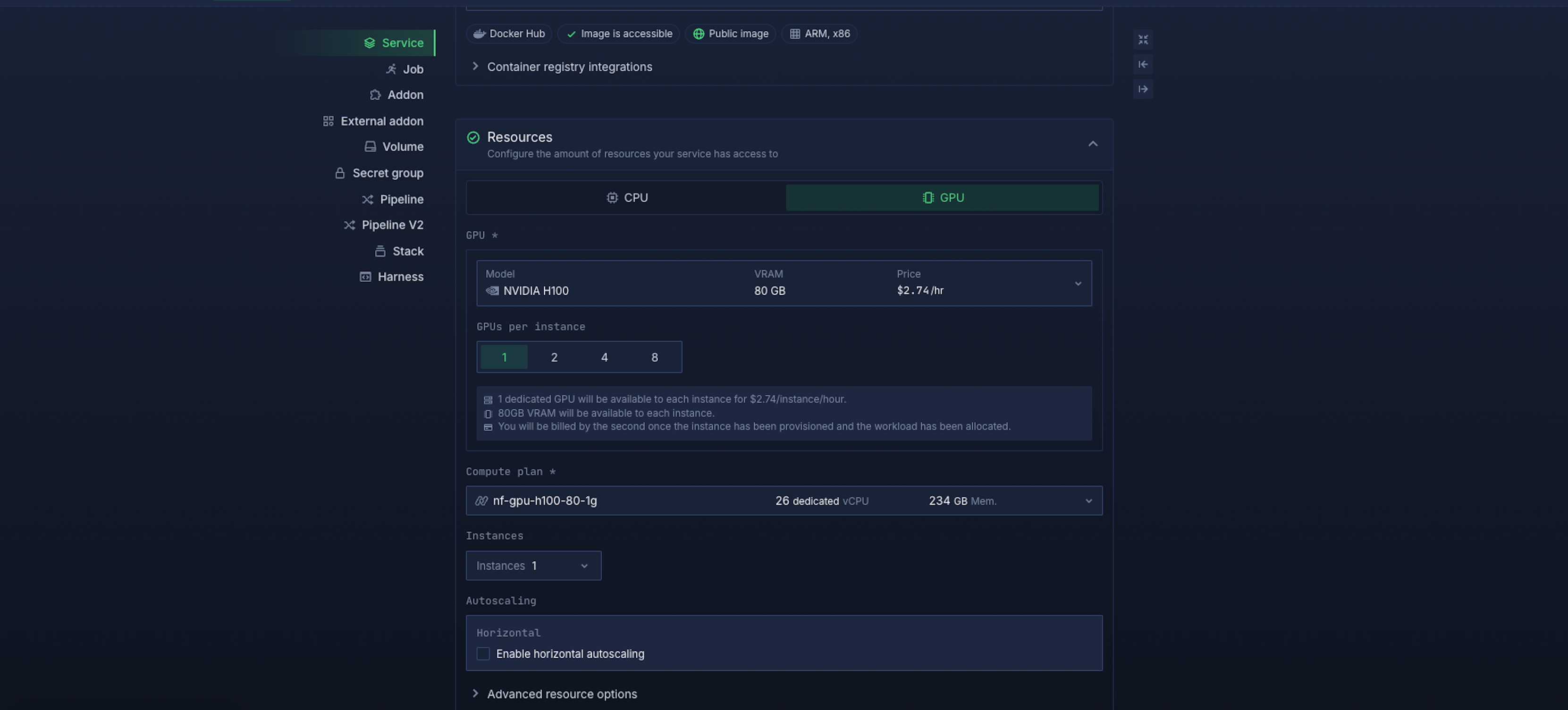
Under Resources, open the GPU tab. Select NVIDIA H100 80GB if available, set GPUs per instance to 1, and keep the service at one instance while testing. Review the matching GPU plan, its allocated CPU and RAM, and the full cost estimate before continuing.
This walkthrough uses an H100, but a four-billion-parameter model does not inherently require one. After the first successful run, evaluate a smaller GPU against your latency and concurrency needs.
Northflank’s managed GPU plans have a fixed ephemeral-storage allocation based on GPU type and count. Check that it accommodates the image, model downloads, and temporary files; use persistent storage for data you need to retain. GPU memory cannot substitute for system RAM or disk space.
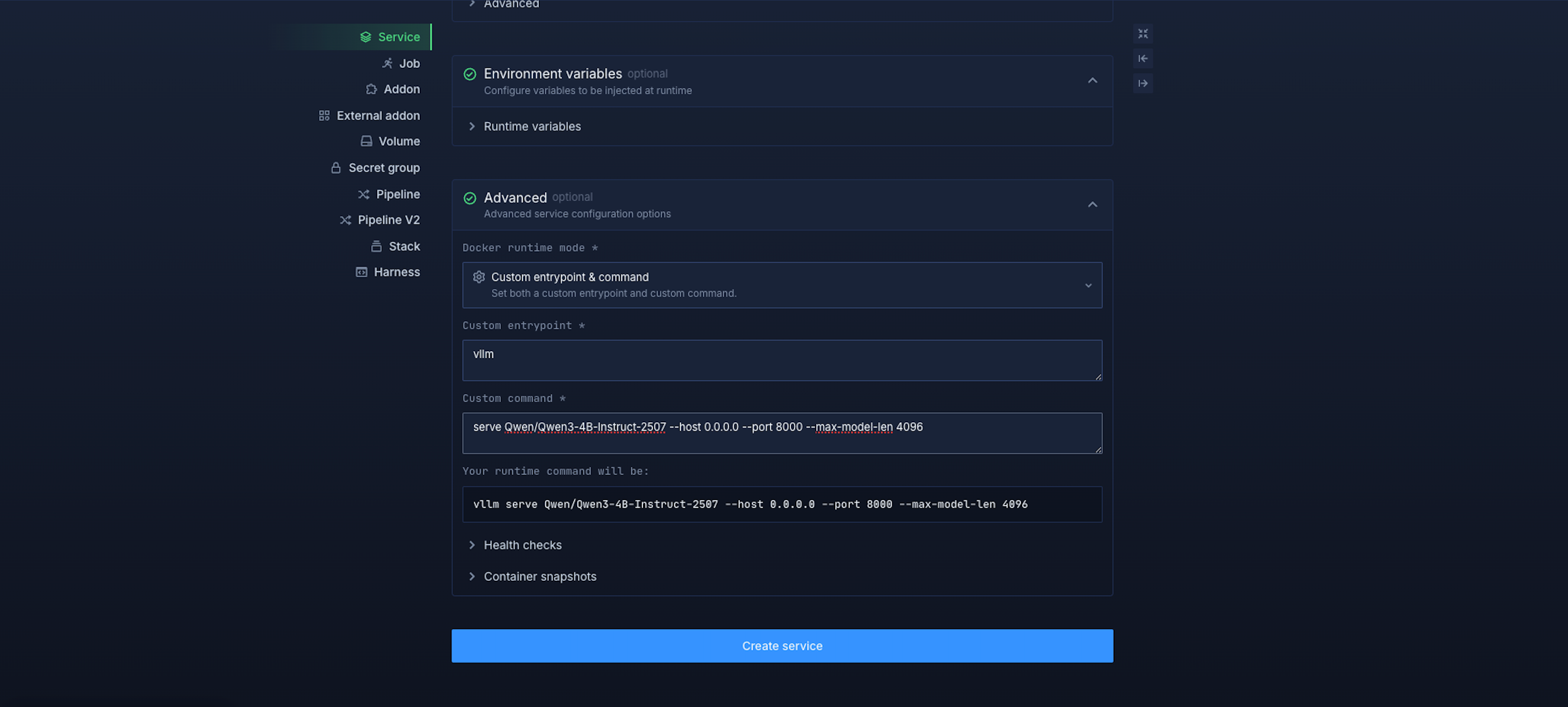
Override the runtime so the container starts the intended model with a bounded context length.
In the Docker runtime settings, select the option to customise both the entrypoint and command. Set the entrypoint to:
vllmSet the command to:
serve Qwen/Qwen3-4B-Instruct-2507 --host 0.0.0.0 --port 8000 --max-model-len 4096Northflank combines the entrypoint and command to run vllm serve .... These fields belong in the deployment configuration, not your laptop's terminal. No shell wrapper is needed for this command.
The Qwen model card includes vLLM serving instructions. Here, --max-model-len 4096 caps the combined input and output context for the initial test, rather than allocating for the model's much longer default context. It does not guarantee a particular level of performance.
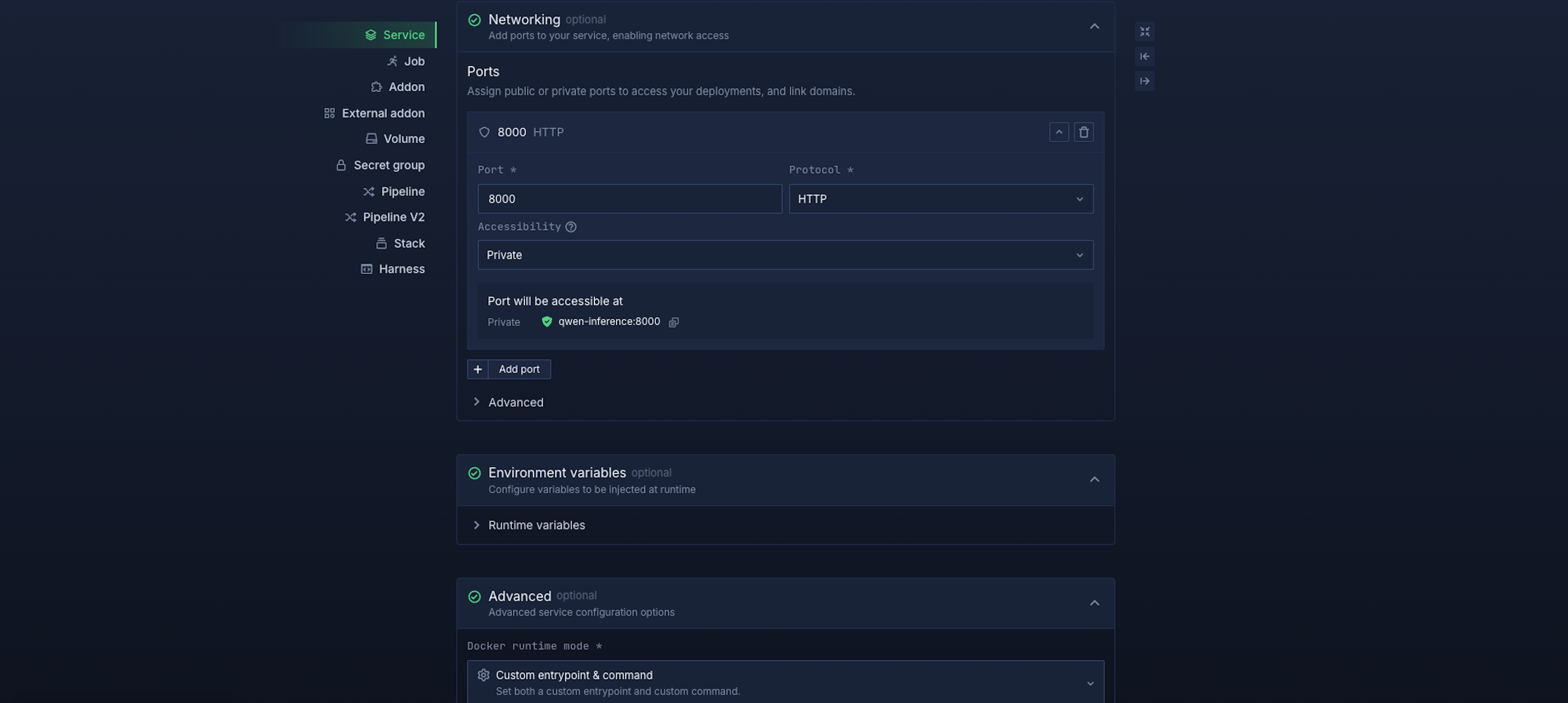
Add HTTP port 8000 and leave public exposure disabled for the initial deployment.
Then select Create service. Open the service logs to follow the image pull, model download, and server startup. Wait for vLLM to finish loading before testing it.
If the service restarts or fails to initialise, read the first relevant error. Increasing the GPU allocation will not resolve an invalid image path, insufficient disk space, or a malformed startup command.
Add port-level authentication before making the model reachable from the internet.
Open Configure → Networking. For port 8000, expand custom domains & security rules and add Basic authentication credentials. Use a username such as gpu-client and a strong, unique password. Save the rule, then enable public exposure and copy the generated HTTPS endpoint.
Northflank's port security policies apply across the public paths assigned to that port. This example uses that protection rather than relying on a model server's API-key setting to cover every route.
If your model only serves applications inside the project, keep the port private instead. Public access is needed for the local-terminal test below, not for every production architecture.
Send an authenticated request from your computer to confirm that the model server is reachable.
Set the endpoint below to the HTTPS URL you copied from Northflank, without a trailing slash:
GPU_ENDPOINT='https://YOUR-SERVICE-ENDPOINT'

curl --fail-with-body --user gpu-client \
  "$GPU_ENDPOINT/v1/models"
curl prompts for the password you set on the port. A successful JSON response should list Qwen/Qwen3-4B-Instruct-2507.
Next, request a short completion:
curl --fail-with-body --user gpu-client \
  "$GPU_ENDPOINT/v1/chat/completions" \
  -H 'Content-Type: application/json' \
  --data '{
    "model": "Qwen/Qwen3-4B-Instruct-2507",
    "messages": [
      {"role": "user", "content": "Explain GPU rental in one sentence."}
    ],
    "max_tokens": 80
  }'
Enter the same password when prompted. The expected result is JSON containing generated text under choices[0].message.content; the wording can vary.
A response confirms the serving path works. It does not establish production throughput, reliability, or the cheapest configuration. Measure those using representative requests before scaling.
Check the failure stage before changing resources: scheduling, image startup, model loading, and HTTP access have different causes.
| Symptom | What to check |
|---|---|
| No GPU options or deployment waiting for capacity | Project region, available GPU model, account credit, and requested GPU count |
| Container exits during startup | Entrypoint and command fields, compatible image, and startup logs |
| Out-of-memory error | Whether the error concerns host RAM or GPU VRAM; then model context, concurrency, and allocation |
| Download or disk-space error | Image/model access and available ephemeral or persistent storage |
| Authentication error | Port credentials and the username/password supplied to curl |
| Connection error or gateway error | Public port configuration, port 8000, server binding, and whether model loading has completed |
Keep only the capacity you need running, preserve reusable model data, and measure performance before adding replicas. The first successful response is the beginning of resource tuning.
Store anything that must survive a container replacement outside its ephemeral filesystem.
For repeat runs, attach a persistent volume or use external storage. With the default vLLM image user, /root/.cache/huggingface is the model cache location. Mounting persistent storage there can avoid downloading the same weights after every restart.
Save training checkpoints and outputs to persistent storage too. If you add replicas, choose a storage arrangement that supports their access pattern rather than assuming one writable volume can be attached everywhere.
Use request latency, throughput, resource consumption, and queue growth to decide whether to change the hardware or add instances.
Northflank supports horizontal autoscaling using CPU, memory, requests per second, or custom Prometheus metrics. Set minimum and maximum instance counts, and allow for model-loading time when selecting thresholds.
Adding replicas runs additional copies of the service. It does not automatically split a model across GPUs or configure distributed training. Each replica also needs its own GPU allocation and access to the model data.
Use a manual or scheduled job for training scripts, evaluations, and batch processing that should finish after completing their task.
A job terminates when its container finishes. A continuously running inference service stays provisioned between requests. Choose the lifecycle that matches the work, and make sure the job writes its results before exiting.
Pause the service from its overview when you want to stop its running compute and retain the configuration. Pausing scales the service to zero instances; closing the dashboard or your terminal does not stop it.
For a finished experiment, delete the service after saving anything you need. Review retained volumes and other project resources separately, because they can continue to incur charges. Check the billing dashboard to confirm what remains provisioned.
Yes. With Northflank's bring your own cloud (BYOC), Northflank acts as the control plane, managing Kubernetes and GPU workload deployments inside your cloud account and VPC.
This suits teams that need model workloads near private systems or want to use existing cloud purchasing arrangements. Set up a connected cloud account and a cluster with suitable GPU node pools before deploying the workload. GPU availability then depends on your provider, region, quotas, and cluster capacity.
Follow the GPU deployment guide for your own cloud for that setup. The managed-cloud prices above are not quotes for GPU infrastructure in your own account.
Renting is useful when demand is uncertain, projects are temporary, or you need to change hardware between workloads. Buying can make sense when you can keep suitable hardware busy over a sustained period and operate it economically.
Compare the complete server, power, cooling, maintenance, and staffing costs with the rental configuration you would actually use. Include idle hours and the time needed to obtain capacity. There is no universal number of months after which buying becomes cheaper.
GPU rental lets you run the compute remotely, but the hardware and billing choices still depend on the application.
No. Your model runs on the rented GPU infrastructure. You can configure the deployment through a dashboard or API and send requests from a computer without a dedicated GPU.
Yes. Training changes model weights, while inference uses a model to produce outputs. Choose a runtime and GPU allocation for the specific task: a finite training run fits a job, while an online inference API fits a service.
Yes, subject to capacity and platform configuration. Northflank's managed GPU workflow offers GPU counts per instance, but your application must be configured to use them. Adding service instances and distributing one model across multiple GPUs are different operations.
You can. A provisioned GPU service generally continues consuming billable resources even when it receives no requests. On Northflank's managed cloud, pause or remove unused service compute and review retained storage separately.
Begin with one model and a representative request, then use the results to choose capacity for the application you intend to run.
Deploy and scale your GPU model with persistent storage and a protected inference endpoint. Get started with Northflank, or book a demo to discuss deployment and capacity requirements.
These guides cover provider comparisons, hardware selection, and workload optimisation: