
How to deploy vibe-coded Bolt.new apps to production in minutes
You built an app in Bolt.new. It runs in the browser preview. Now you need it on a real URL, with HTTPS, automatic redeployments when you make changes, and infrastructure that does not break when real users hit it.
This article covers how to deploy a Bolt.new app to production on Northflank: exporting your code to GitHub, configuring the build, and getting a live HTTPS URL with automatic redeployments on every push.
Bolt.new builds the app. Northflank runs it in production.
- Ask the Bolt.new agent to add a start script to your project, then connect to GitHub directly from the Bolt.new editor.
- Connect the repository to Northflank. Framework detection handles the build configuration automatically.
- Northflank deploys the app, provisions TLS, and gives you a live URL in under two minutes.
- Every change you make in Bolt.new commits automatically to GitHub and triggers a redeployment on Northflank.
What is Northflank? Northflank is a full-stack cloud platform that deploys Bolt.new apps with production-grade infrastructure: managed databases, secrets management, TLS, CI/CD pipelines, preview environments per pull request, and BYOC into your own cloud. No infrastructure code. No DevOps background required. Sign up to get started or book a demo.
Bolt.new's built-in hosting works for previews and early prototypes. Moving to Northflank gives you a production deployment with managed databases, secrets management, autoscaling, preview environments per pull request, CI/CD pipelines, and BYOC support when your app grows. You keep building in Bolt.new. Northflank handles everything underneath.
Before connecting to GitHub, there is one small thing you need to ask the Bolt.new agent to do. When Northflank runs your app, it needs a command to start a server. Bolt.new projects do not include this by default. Open the Bolt.new chat and paste this prompt exactly:
Add a start script to package.json that serves the build output on port 3000 using the serve package.
The agent will make the change for you. You do not need to understand what it does, just confirm it looks like it was applied before moving on.
Once that is done, connect your project to GitHub. Click the GitHub icon in the top right of the Bolt.new editor. If you do not have a GitHub account, create one for free at github.com before continuing.
- Click Log in to GitHub
- Click Authorize StackBlitz (StackBlitz is Bolt's parent company)
- Once connected, click the GitHub icon again
- In the Create a repository window, enter a name for your repository
- Click Create repository
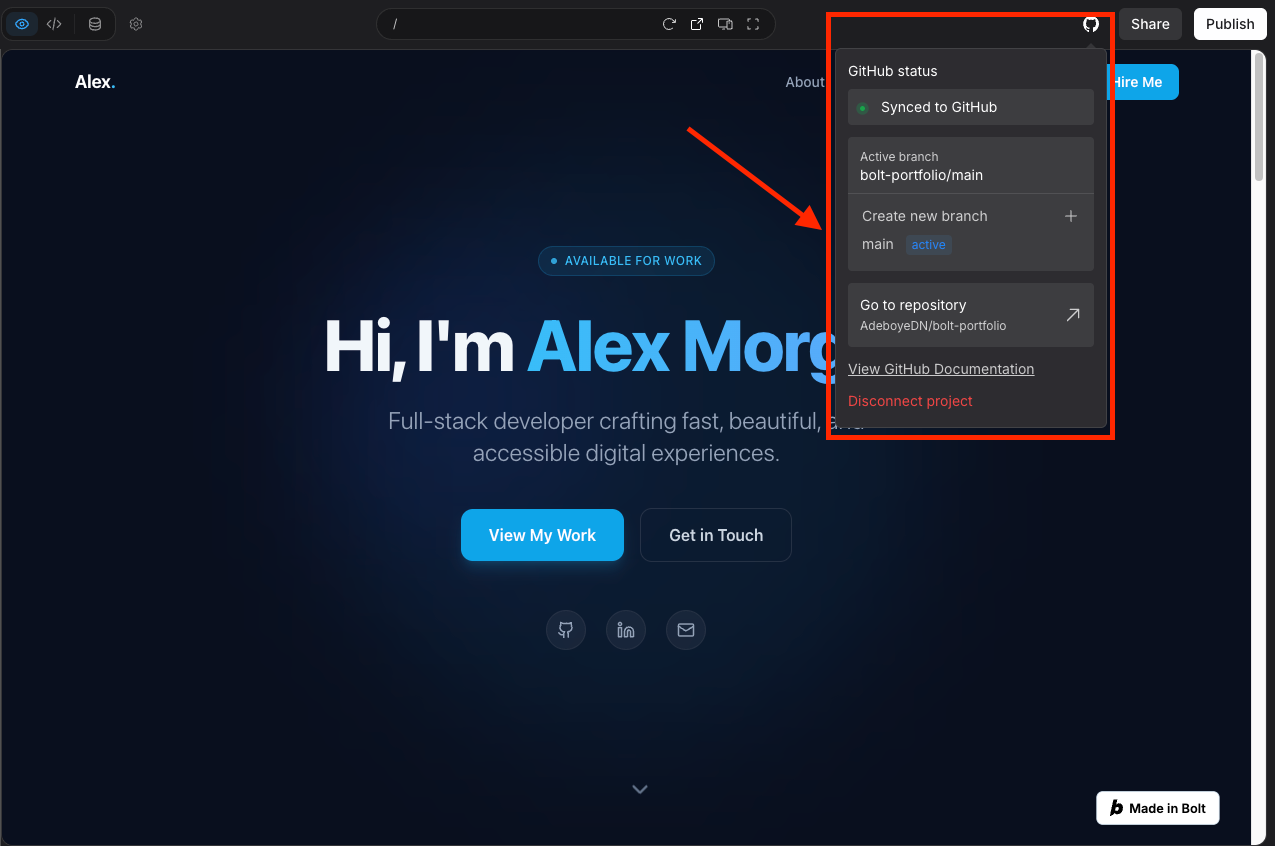
Bolt.new automatically commits every change you make to the repository from this point on. Every commit triggers an automatic redeployment on Northflank once connected.
Sign up for Northflank. The free tier includes two services, one database, and two cron jobs with always-on compute.
Once you are in the dashboard, link your git account and create a new project. A project is a container for all the resources that belong to your app: services, databases, secrets, and pipelines.
- Click Create project from the dashboard
- Give it a name matching your Bolt.new app
- Choose a deployment target (Northflank Cloud)
- Select a region closest to your users
- Click Create project
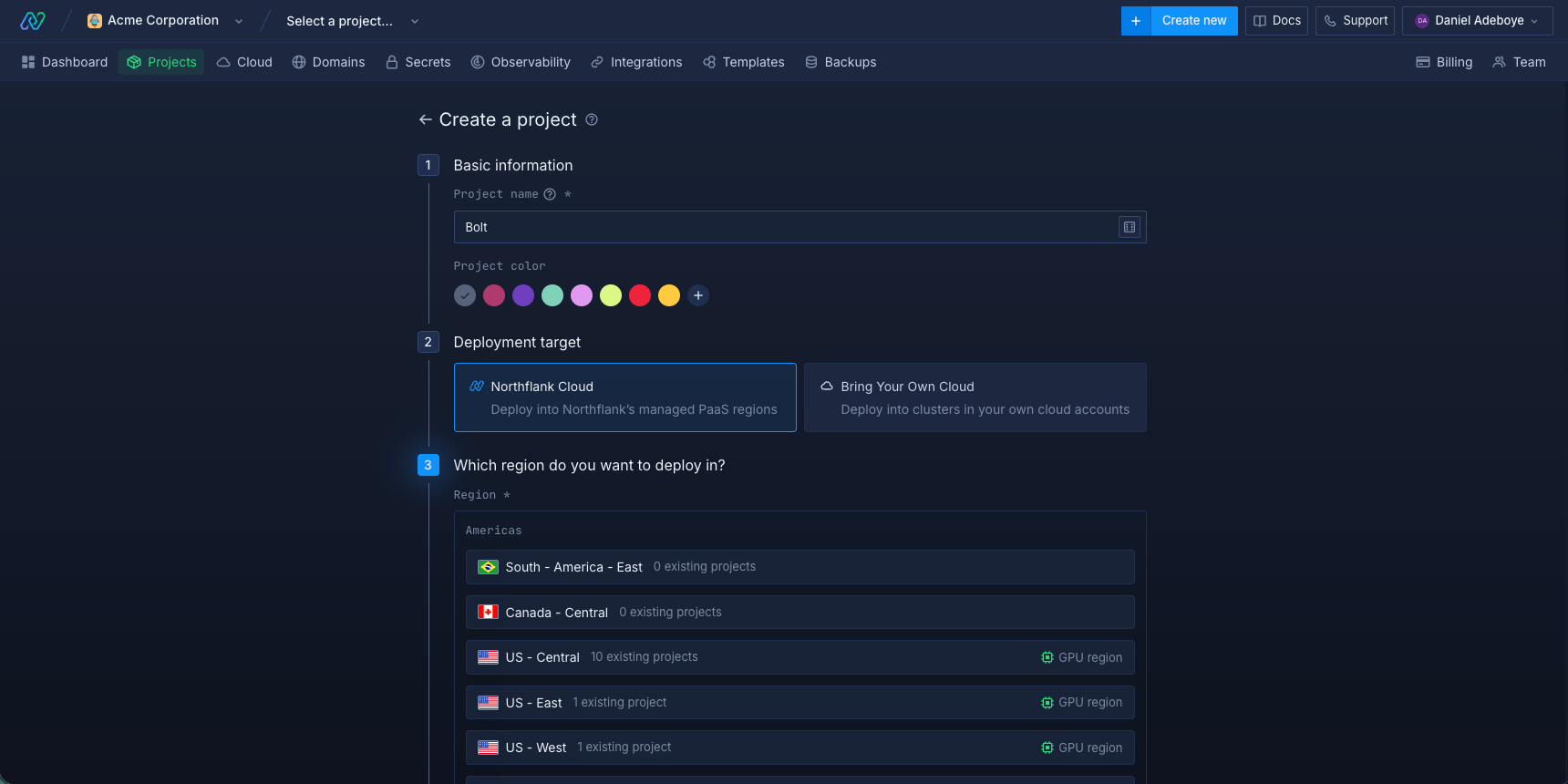
Tip: If you are using Claude Code, Codex, Gemini CLI, or Cursor, you can install the Northflank skill to deploy and manage your app directly from your agent workflow without switching to the Northflank dashboard.
- Inside the project, click Create service
- Select Combined service and enter a name, for example
bolt-app - Select your repository from the dropdown and choose the branch to deploy from
- Under Build options, select Buildpack to let Northflank detect your framework and configure the build automatically
- Under Networking, add a public port set to
3000to match thestartscript. Northflank provisions a public HTTPS URL on this port automatically - Under Environment variables, add any credentials your app needs. There are two types: build arguments are injected during the build process, and runtime variables are injected when the app is running. If you are unsure which to use, ask the Bolt.new agent: "Do my environment variables need to be available at build time or runtime?" and add them in the correct section based on the answer
- Leave resources at the default values. You can enable autoscaling from the resources panel at any time
- Click Create service
Tip: If your app has multiple services or you want to manage credentials in one place, secret groups are a better option than adding variables directly to each service.
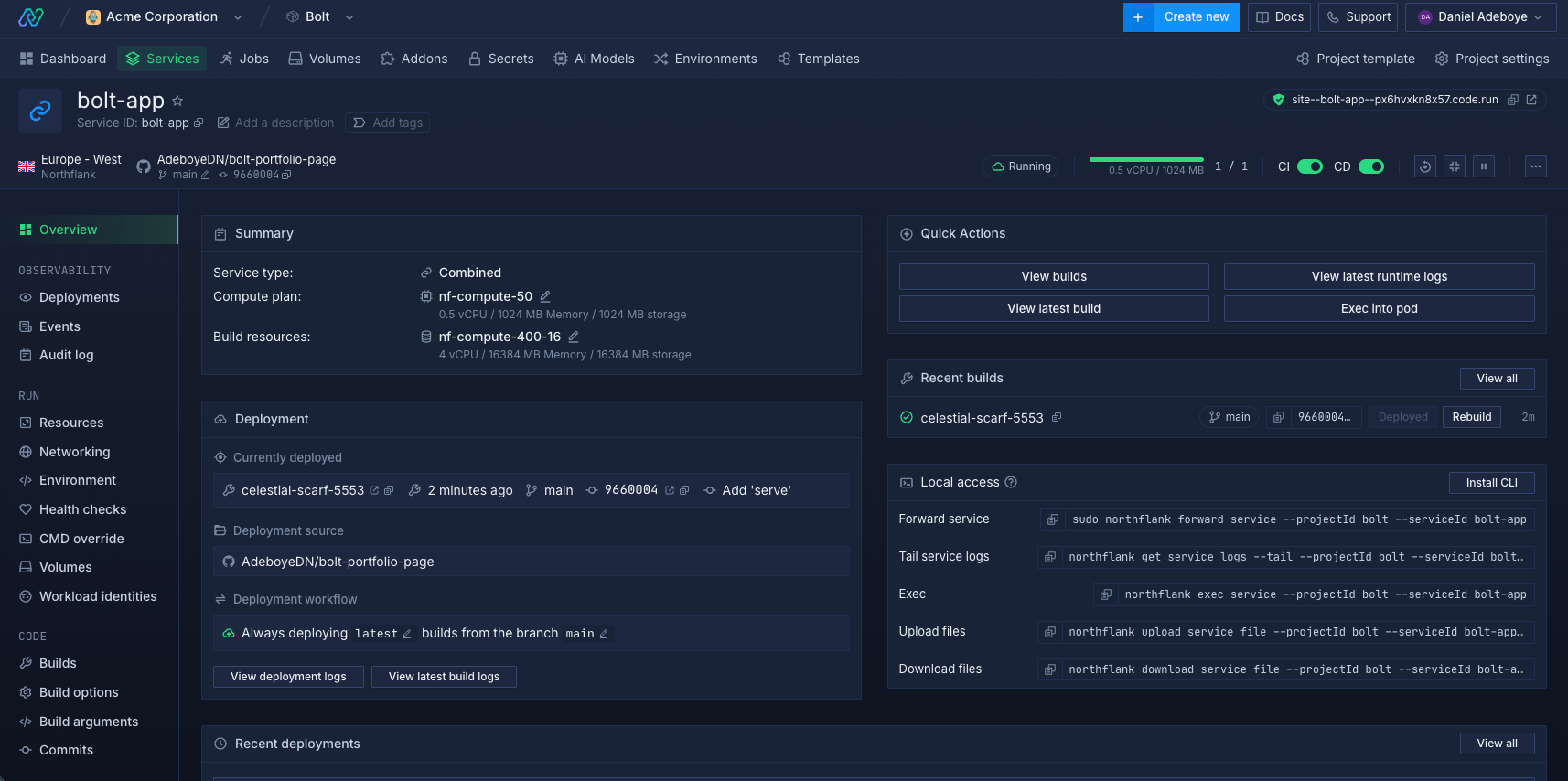
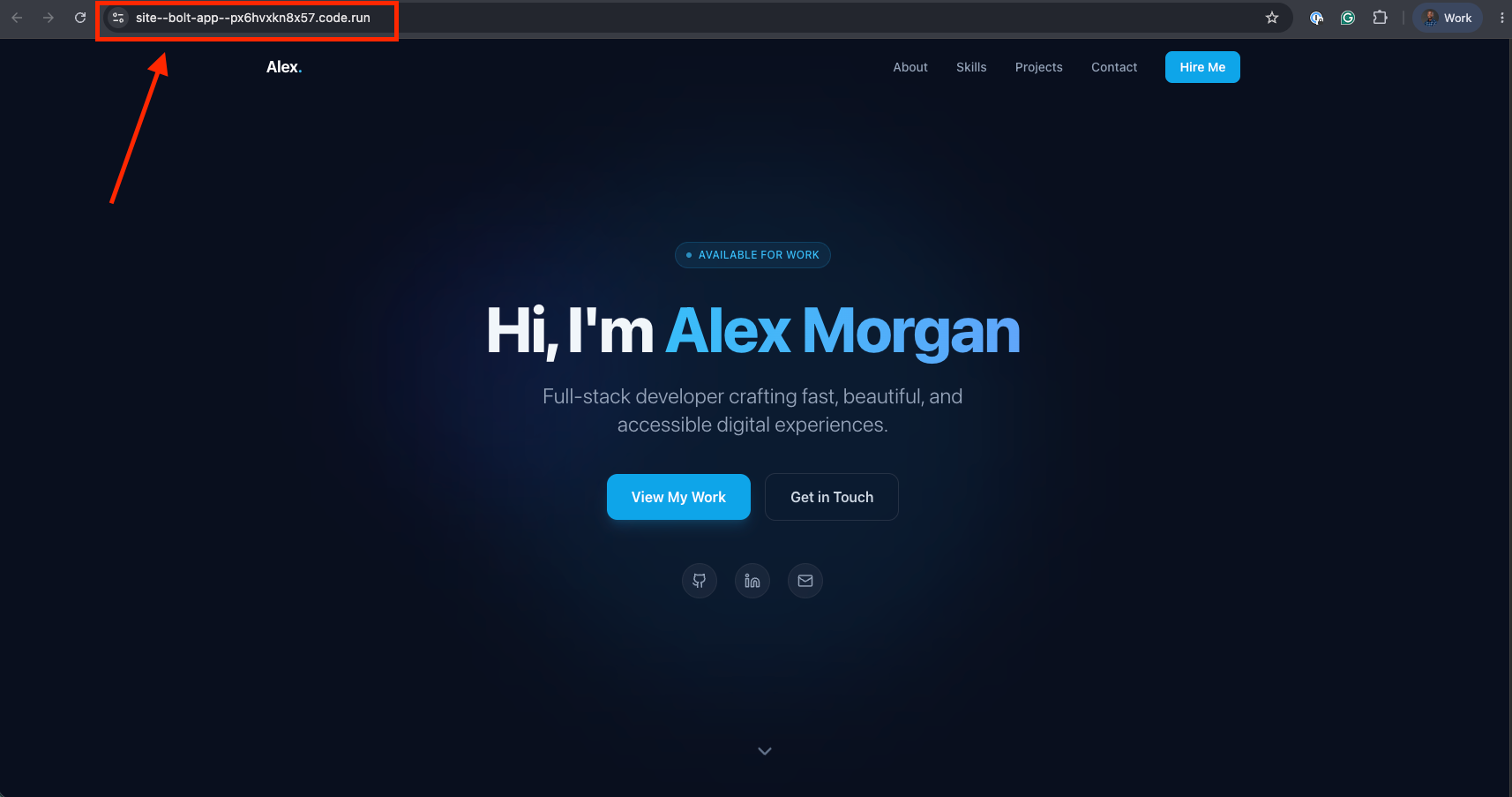
Northflank builds the app and deploys it. TLS is provisioned automatically. Your Bolt.new app is live on a *.code.runURL in under two minutes.
To use your own domain, first verify it in your Northflank account settings by adding a TXT record to your DNS provider. Once verified, add a subdomain and point it to your service port using the CNAME record Northflank provides. Northflank provisions a TLS certificate automatically.
For the full walkthrough, see Add and verify a domain in the Northflank docs.
By the end of this guide your Bolt.new app has:
- A live HTTPS URL on a
.code.runsubdomain or your own domain - Automatic redeployment on every change you make in Bolt.new
- Environment variables injected at runtime with no credentials in source code
- Always-on compute on the free tier
When your app grows beyond a static frontend and needs a managed database, background workers, preview environments per pull request, or the ability to run inside your own cloud account, Northflank covers all of it from the same control plane.
No. You keep building in Bolt.new. Every change you make commits automatically to GitHub and triggers a redeployment on Northflank. Your workflow stays in Bolt.new. The production infrastructure runs on Northflank.
No. Northflank's buildpack detection identifies the framework automatically and configures the build without a Dockerfile. A Dockerfile is supported if you want more control but is not required for most Bolt.new projects.
Bolt.new automatically commits the change to GitHub. Northflank detects the new commit and triggers a new build and deploy automatically. No manual steps required after the initial setup.
Yes. Northflank provides managed PostgreSQL, MySQL, MongoDB, Redis, MinIO, and RabbitMQ as first-class addons. Provision one from the project dashboard and Northflank injects the connection string automatically via secret groups.
Yes. Add your Supabase environment variables to a Northflank secret group and link it to your service. Northflank injects them at build or runtime depending on your framework. Your Supabase backend works exactly as it does in the Bolt.new preview.
Yes. Northflank preview environments spin up an isolated copy of the app per pull request and tear down automatically on merge. For a full walkthrough, see How to auto-create preview environments on every PR.
Bolt.new builds the app. Northflank keeps it running in production. Add a start script, connect to GitHub, link the repository to Northflank, and your app is live with TLS and automatic redeployments on every change.
Sign up for free and deploy your Bolt.new app in minutes. Or book a demo if you want to walk through your specific setup with an engineer.
- How to deploy vibe-coded apps to production: The general guide for deploying any vibe-coded app on Northflank, with a step-by-step walkthrough.
- Best deployment platforms for vibe coders in 2026: A comparison of Northflank, Vercel, Render, Railway, and Fly.io on databases, secrets management, preview environments, and full-stack scope.
- How to auto-create preview environments on every PR: Step-by-step guide to setting up automatic preview environments so every pull request gets its own isolated deployment.