
How to keep Claude Code running when you close your laptop
- Claude Code stops when you close your laptop because the machine goes to sleep, which suspends the process and interrupts its connection to the model API.
- You can keep your laptop awake with caffeinate on macOS, systemd-inhibit on Linux, or the lid-close power setting on Windows. That keeps the session alive, but your laptop still has to stay powered and connected, and you cannot easily check in from another device.
- Northflank Cloud Harnesses run Claude Code in isolated cloud environments, so the session keeps running when you close your laptop, and you can check in from any browser or over SSH. Harnesses support Claude Code, Codex, Cursor, OpenCode, Pi, or bring your own agent, and run on Northflank's managed cloud or in your own AWS, GCP, Azure, Oracle, or CoreWeave account through self-serve BYOC, with microVM isolation, persistent storage, a web terminal, and SSH access.
Keep Claude Code running after you close your laptop with Northflank Cloud Harnesses, or book a demo to discuss your setup.
You give Claude Code a long task, such as a refactor across dozens of files or a dependency upgrade with a slow test suite. It is twenty minutes in and making progress when you need to leave. You close the lid, and when you open it again the session has stalled and the work stopped where you left it.
This happens because Claude Code runs as a process on your laptop, and that process depends on your laptop being awake and online. This guide explains why Claude Code stops when you close your laptop, how to keep your laptop awake on macOS, Linux, and Windows, where that approach breaks down, and how to run Claude Code in the cloud so that closing your laptop has no effect on the session.
Closing the lid puts most laptops to sleep. Sleep suspends running processes, including Claude, and interrupts the network connection. Claude Code works by sending requests to the model API and running tools on your machine, so when the process is suspended and the connection drops, the session can no longer continue. In-flight requests can time out, and the session remains idle until you wake the machine and continue it.
Running Claude Code inside tmux or screen does not fix this. tmux keeps a session alive when you close a terminal window or lose an SSH connection because the tmux server continues running on the machine. When the machine itself goes to sleep, the tmux server is suspended along with everything else.
The quickest fix is to stop your laptop from sleeping while Claude Code works. Each operating system has its own way to do this.
Start Claude Code through caffeinate, which prevents the Mac from idle sleeping for as long as the command runs:
caffeinate -i claudecaffeinate -i prevents idle sleep, but closing the lid still puts a MacBook to sleep. To keep it running with the lid closed, use clamshell mode: connect the MacBook to power and an external display, then close the lid. The Mac stays awake and Claude Code keeps working.
On Linux distributions that use systemd, start Claude Code with systemd-inhibit to prevent the system from sleeping while it runs:
systemd-inhibit --what=sleep:idle:handle-lid-switch claudeThe inhibitor is released when Claude exits. To change the lid behavior permanently instead, configure your Linux distribution's power settings so that closing the lid does not suspend the machine.
Open Control Panel, go to Power Options, and select Choose what closing the lid does. Set When I close the lid to Do nothing for Plugged in, and for On battery if you need it, then save the changes.
Claude Code can then continue running in your terminal or WSL session with the lid closed.
Keeping the laptop awake keeps the session alive, but it ties the task to one physical machine.
- Battery drain: Claude Code running builds and tests keeps the CPU busy. On battery, a long task can drain the laptop before it finishes.
- Heat: A closed laptop under load in a bag or backpack has little airflow. Sustained load in that state can cause the machine to get hot.
- Network changes: Moving between Wi-Fi networks, losing signal, or connecting to a VPN can interrupt the connection to the model API. The laptop stays awake, but the session can still stall.
- The laptop is tied up: While Claude Code runs builds and tests, your own work on the same machine competes with it for CPU and memory.
- No way to check in from another device: The session lives on the laptop. To see progress or answer a question, you have to open that laptop.
- No isolation: Claude Code runs in the same environment as your other work on the laptop. Depending on the permissions and credentials you give it, the agent may have access to local files, credentials, and other projects.
| Laptop kept awake | Your own server or VM | Northflank Cloud Harnesses | |
|---|---|---|---|
| Keeps running when the lid closes | Only with sleep disabled or in clamshell mode | Yes | Yes |
| Affected by network changes on your laptop | Yes | No | No |
| Setup effort | Low | High: provision, install, secure, and maintain a server | Low: create a Harness in the dashboard |
| Check in from another device | No | Yes, over SSH | Yes, through the web terminal in any browser or over SSH |
| Isolation from your machine | None | Separate machine, shared by every task on it | Isolated microVM per Harness |
| Team access | No | Shared SSH keys or user accounts you manage | Teammates connect with their own Northflank accounts |
| Cost | Your laptop's battery and hardware | Server bills while running, including when idle | Billed based on active compute usage |
Keeping your laptop awake is fine for a short task you will come back to soon. A server or VM removes the dependency on your laptop but adds a machine to provision, secure, and maintain. For running the server yourself, see How to run remote coding agents.
Northflank Cloud Harnesses remove that infrastructure work by giving Claude Code a dedicated remote environment with isolation, remote access, and configurable compute.
Think of a Harness as a dedicated cloud environment for your coding agent, without the infrastructure work normally required to build one.
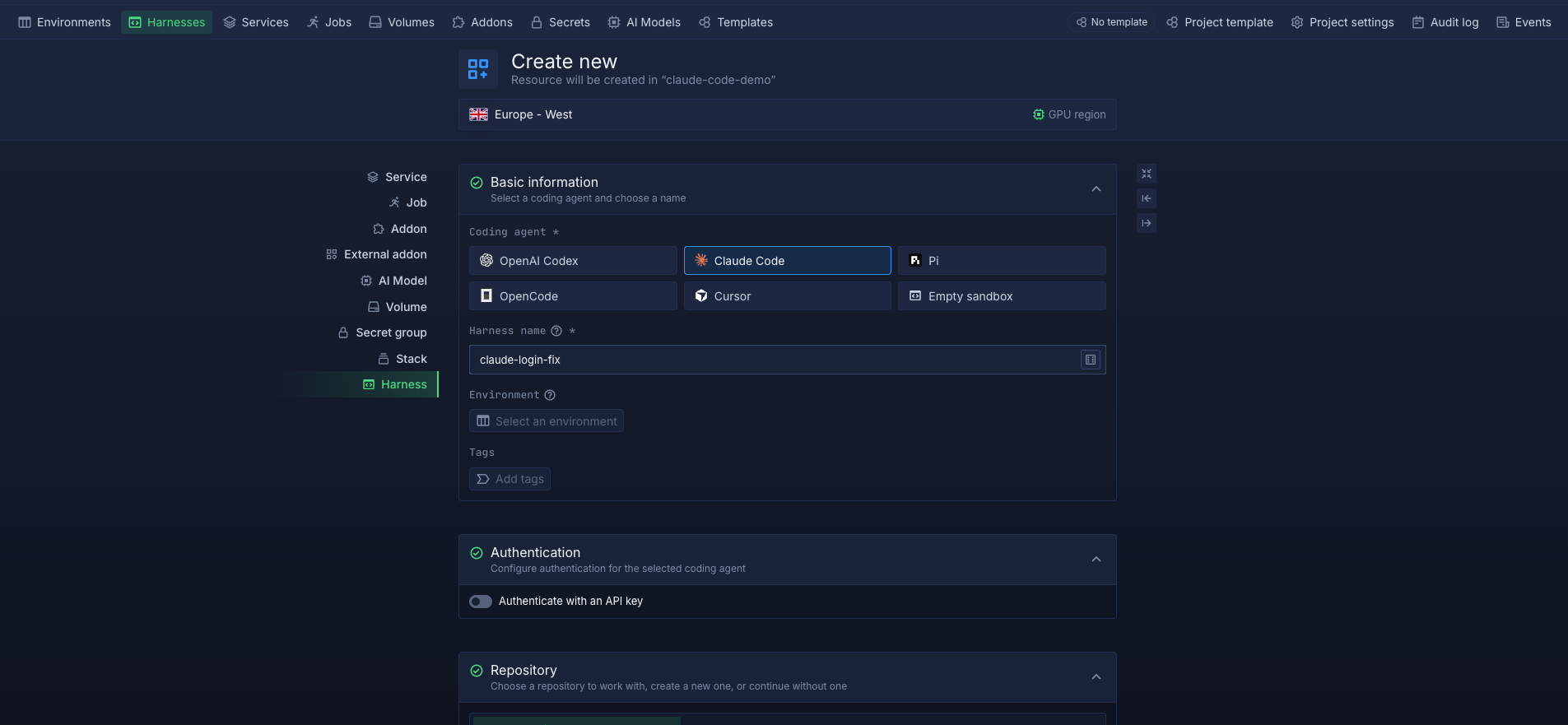
Northflank Cloud Harnesses are cloud coding environments that let you run agents such as Claude Code in an isolated workspace. You can select Claude Code when creating a Harness, configure its authentication, connect a Git repository and branch, and configure the resources and environment it needs. Northflank opens a terminal in the Harness after creation, so you can start Claude Code there just as you would on your laptop.
Because the Harness runs in the cloud, closing your laptop has no effect on the environment. An active Harness continues running until you pause or delete it, so Claude Code can keep working after you disconnect from the terminal. You can return to the Harness from the Northflank dashboard or connect from your local terminal over SSH.
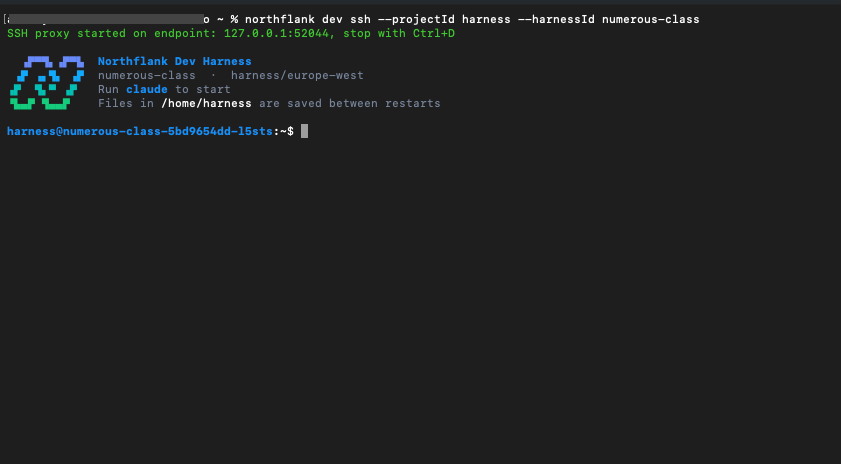
Workspace persistence is enabled by default and preserves files in the Harness workspace across pauses, restarts, and redeployments. When you finish a task, you can pause the Harness to stop its processes and scale it to zero, then resume it later with the workspace intact.
You can also use the same Cloud Harness workflow with other coding agents supported by Northflank. Cloud Harnesses run on Northflank's managed cloud or in your own cloud infrastructure, so you can choose where the environment runs based on your requirements.
Create your first Claude Code Harness on Northflank, or see How to run Claude Code in the cloud for the full setup.
- Create a Harness: In the Northflank dashboard, open a project, select Harnesses, and click Create harness. (See quick start guide)
- Select Claude Code: Choose Claude Code as the coding agent, give the Harness a name, and select the environment where you want it to run.
- Configure authentication and your repository: Select an authentication method for Claude Code, then choose the repository and branch you want to work on. You can also configure resources, environment variables, and workspace storage under Advanced.
- Create the Harness: Click Create harness and start Claude Code in the Harness terminal.
- Give Claude Code its task: Include how to verify the work, such as the test command to run, and ask it to commit its changes to the appropriate branch.
- Close your browser or laptop: Claude Code continues running in the Harness because the environment is running remotely.
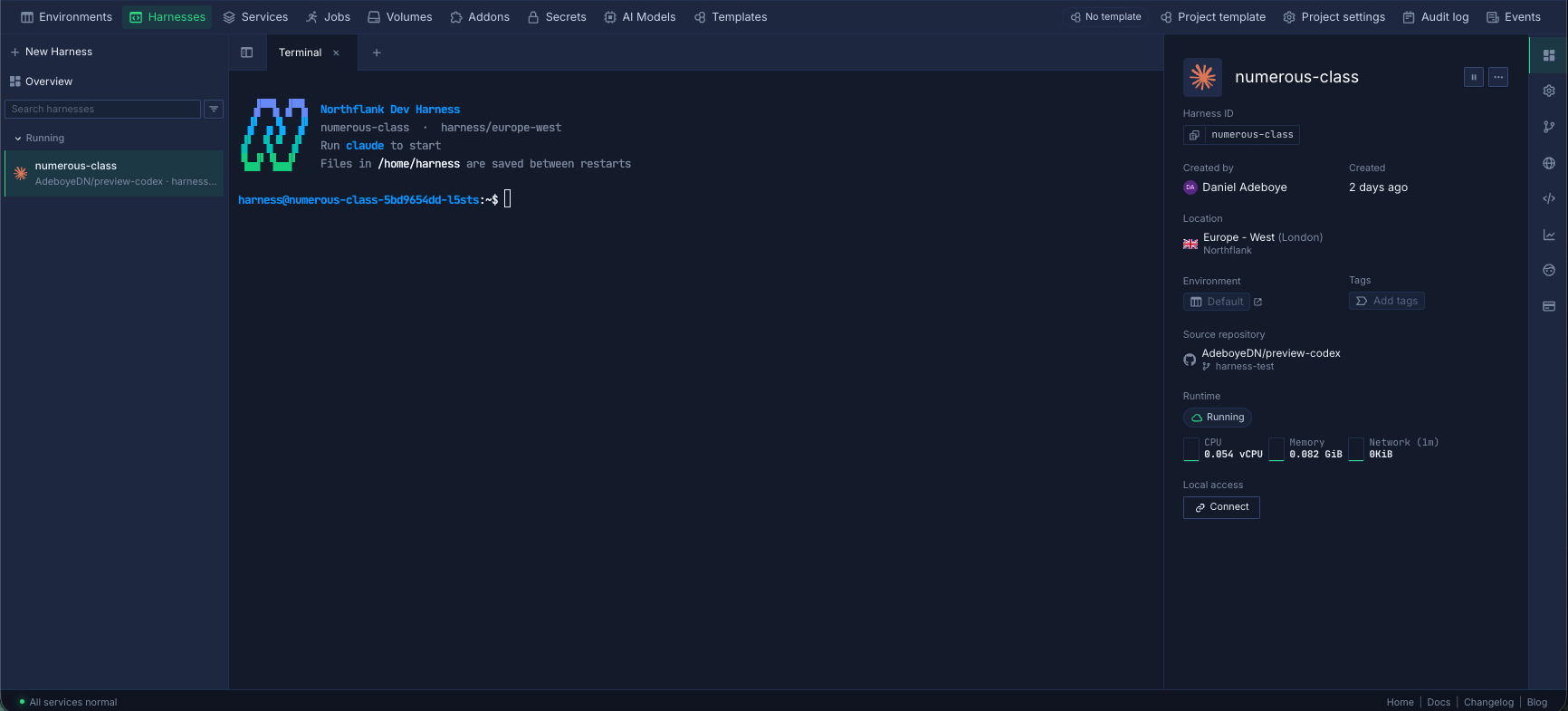
- Open the Northflank dashboard from another computer and select the Harness from your project.
- Open the web terminal to check on Claude Code and review its progress.
- Or connect from your local terminal. Open the Harness overview, go to Local access, click Connect, and copy the SSH command. Northflank's CLI uses this format:
northflank dev ssh --projectId your-project-id --harnessId your-harness-id
If Claude Code is running on your laptop, closing the lid usually puts it to sleep and suspends the session. If it runs in a Northflank Cloud Harness, it keeps running after you close the laptop.
If Claude Code runs on your laptop, you need access to that laptop. If it runs in a Northflank Harness, you can open the Northflank dashboard in a browser and use the web terminal to see what Claude Code is doing, or connect over SSH from any device with an SSH client.
Running Claude Code in a remote environment does not inherently change your model provider's usage limits. Those limits depend on the Claude plan, API credentials, or model provider you use. A Cloud Harness changes where Claude Code runs, not the limits imposed by your model provider.
No. A running session is a process on your laptop and cannot be moved to another machine. Ask Claude Code to commit its progress, push the branch, and summarize what is left. Then create a Harness on that branch, start Claude, and give it the summary to continue the task.