View preview environments
-
Open Previews in your project sidebar.
-
Find the preview environments beneath their blueprint
-
Each preview shows:
- Available metadata (e.g. pull request ID, branch name)
- Status (running, building, failed)
- Created date
Click on any preview to view its resources and access URLs.
Create a preview environment manually
You can create a preview environment without waiting for a Git trigger:
-
Open Previews in your project sidebar.
-
Click on a preview blueprint
-
Click Run
-
Select a commit or branch
-
Click Create
This is useful for testing branches before creating pull requests or setting up demo environments.
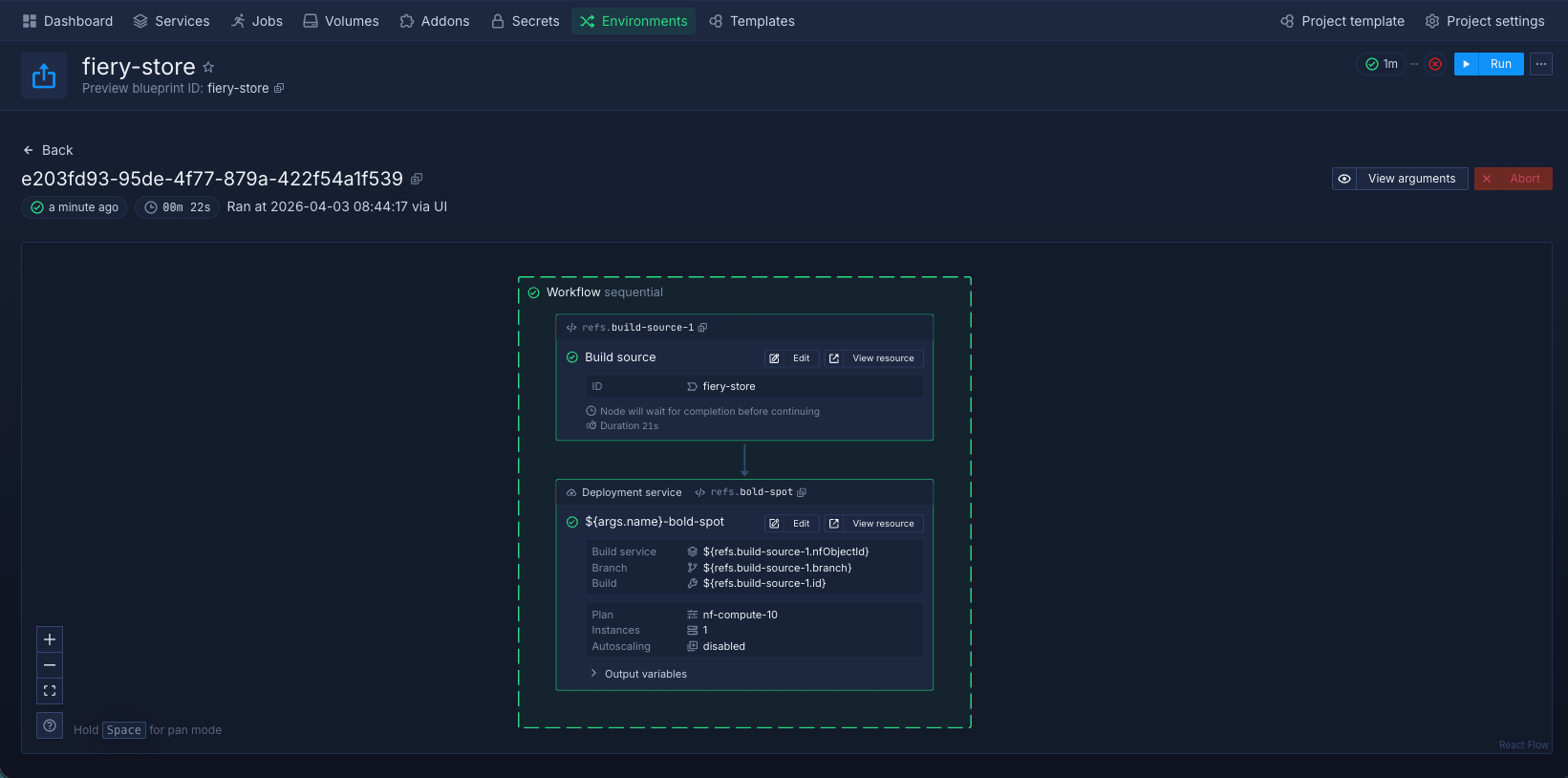
Access preview services
Each preview environment has unique URLs for accessing deployed services:
-
Click on a preview environment
-
View the Services section
-
Click on a service to see its URL
Preview URLs typically follow the pattern: service-name-pr-123.project.northflank.app
Update a preview environment
Matching Git events can update a preview automatically.
To run an existing preview again:
-
Open Previews in your project sidebar.
-
Open the preview environment under its blueprint.
-
Click Run preview environment.
-
Click Run in the confirmation.
The run uses the configuration and arguments from the latest run. It does not include blueprint changes saved after that run. This action does not offer a commit selector.
Pause preview triggers
You can pause individual triggers without deleting the preview blueprint.
To pause one trigger:
- Open the blueprint editor.
- Open the trigger's form.
- Turn off Enable trigger.
- Save the trigger.
- Save the blueprint.
Pausing a trigger does not delete environments or cancel runs. Manual preview runs remain available. Skipped trigger events are not replayed when you resume.
Automatic cleanup still applies while triggers are paused.
Delete a preview environment
Northflank can delete previews automatically. To delete a preview manually:
-
Click on the preview environment
-
Click Delete
-
Confirm the deletion
All resources created by the preview (services, databases, volumes) are permanently deleted.
Configure automatic cleanup
Use preview expiry to delete previews automatically after a configured lifetime. The expiry timer can reset each time the preview runs again. This also applies to scheduled previews.
Git providers can also request preview deletion when a pull request closes or its branch is deleted. Pausing triggers does not stop preview expiry or deletion from Git events.
To remove a preview sooner, delete it manually.
Preview environment resources
Each preview environment can include:
- Services: Deployment services running your application code
- Databases: Addons like PostgreSQL, MongoDB, or Redis
- Jobs: Background tasks or one-time operations
- Volumes: Persistent storage
- Secret groups: Environment variables and configuration
All resources are isolated to the preview environment and deleted when the preview is deleted.
A default tag is automatically added to each preview environment. Secret groups scoped to this tag are made available only within the preview environment by default.
Manage preview costs
Preview environments incur costs while their resources run. To manage costs:
- Choose smaller resource plans in the blueprint's service and addon nodes.
- Set preview expiry to remove previews after a chosen time.
- Narrow Git trigger rules to create only the previews you need.
- Review preview resource usage.
- Delete previews you no longer need.
Troubleshoot preview environments
Preview failed to create:
Check the run logs for errors. Verify build configuration and resource availability.
Preview URL not accessible:
Check service port configuration, networking settings, and deployment status.
Preview not updating on new commits:
Verify Git trigger is configured correctly and webhook settings in your Git provider are active.
Preview environment costs too high:
Reduce resource plans, enable automatic cleanup, avoid running too many previews concurrently, or configure your Git triggers to watch fewer pull requests.