Workflows on Northflank allow you to automate your release process for each environment, from development through to production.
You can create workflows to deploy and promote builds, back up databases, run migrations, and manage infrastructure. Workflows can be automatically run using Git or cron triggers, and work alongside CI/CD for individual services and jobs.
Each workflow is built in a visual editor by connecting nodes that perform specific actions. You can also edit workflows as JSON templates.
Create a workflow
To create a workflow without a named environment, select Default in the first step.
-
Open your project's Dashboard. Select an environment at the top of the dashboard.
-
Select Create... → Workflow. You can also select Create workflow above an existing workflow list.
-
Enter a name for the workflow
-
Click Add trigger to configure an optional automatic trigger
-
Click Continue
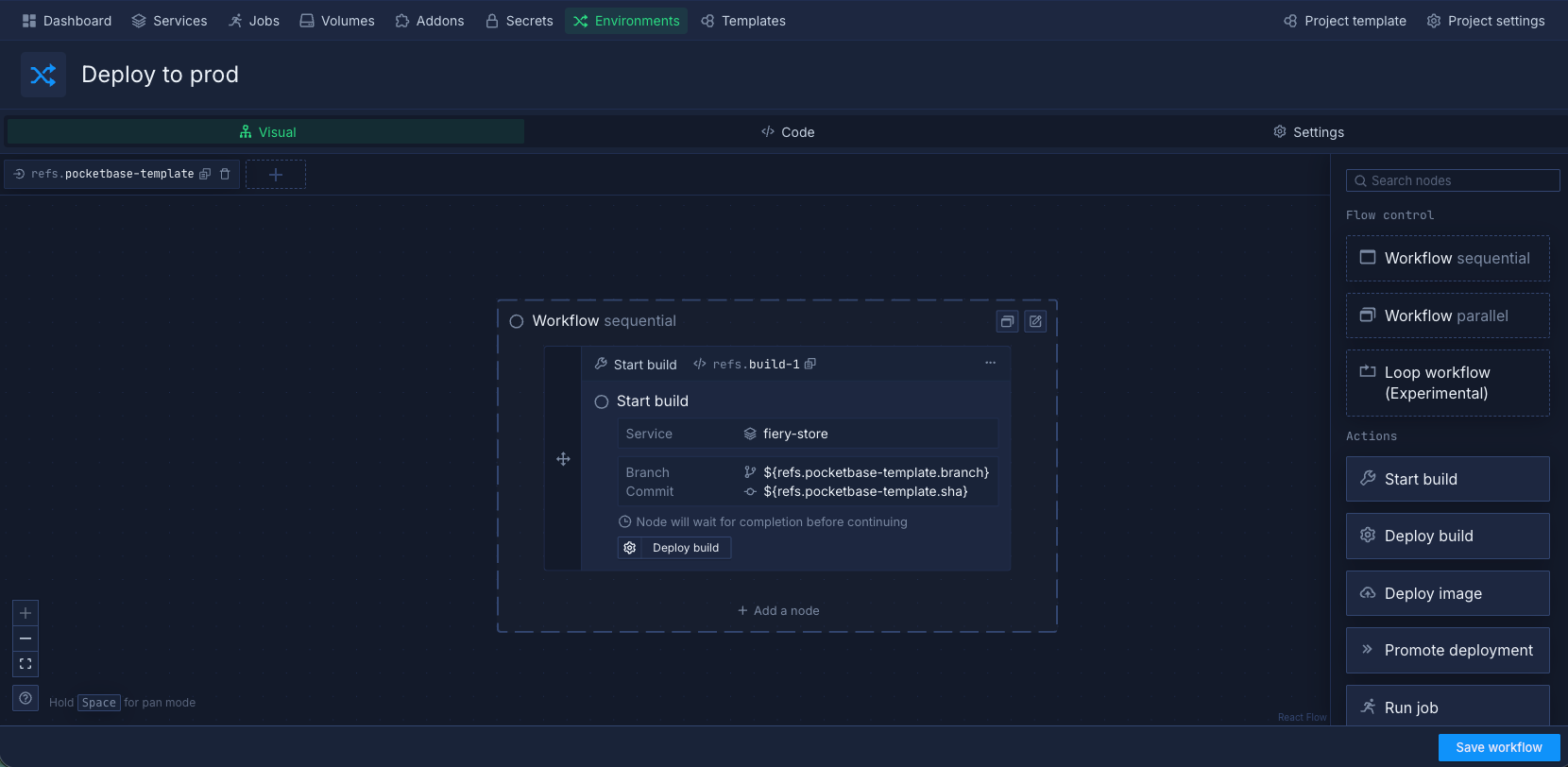
The visual editor opens with your workflow nodes.
Configure workflow nodes
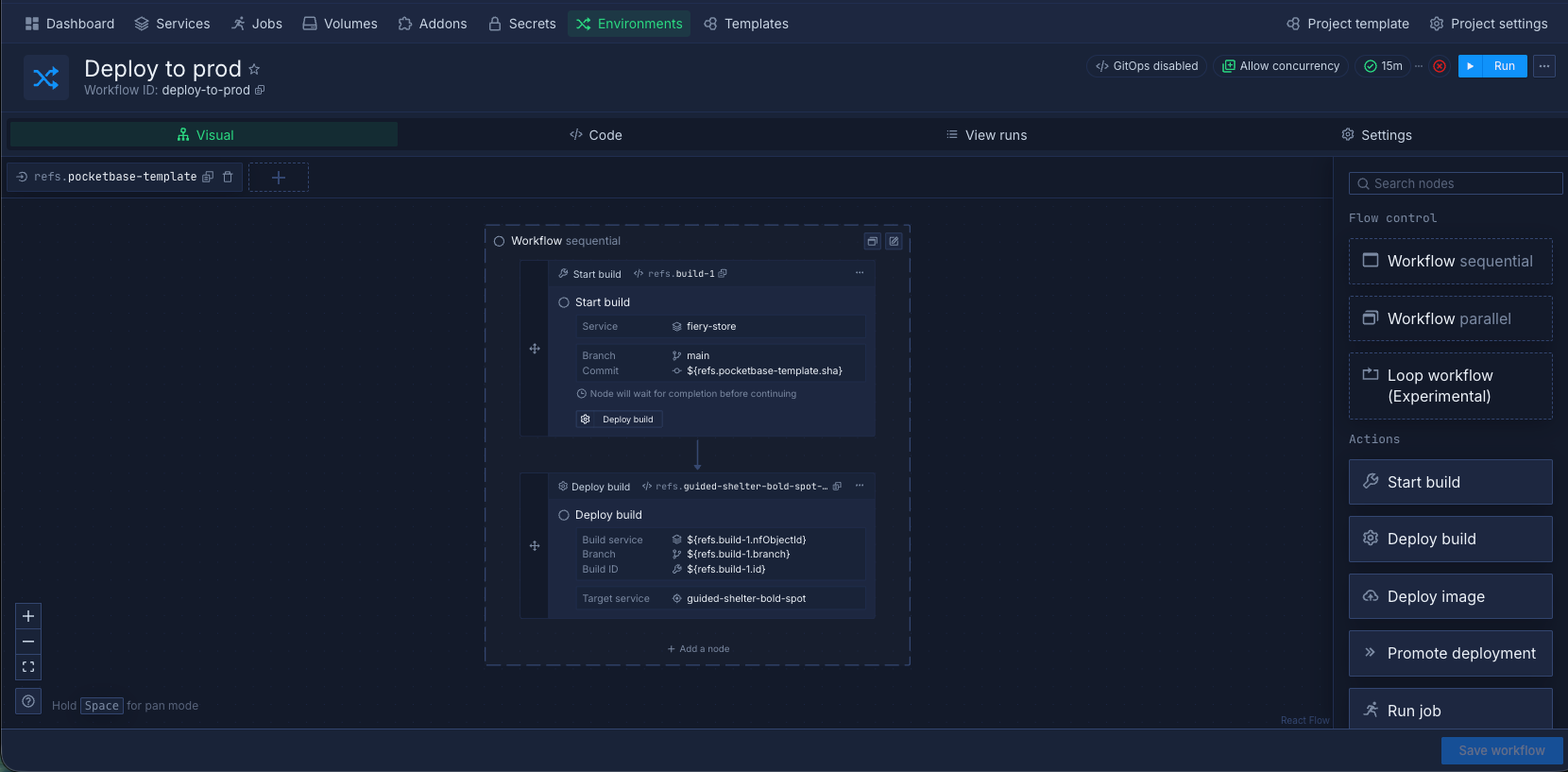
Workflows are built from nodes connected together. Each node performs a specific action and executes in sequence based on connections.
-
Select a node to configure its settings
-
Enter the configuration details for that node type
-
Click Save node
-
On the node, click a connection point (e.g., Deploy build) to add the next node
-
Configure the new node and save it
-
Repeat to build your complete workflow
-
Click Save workflow when finished
Node types
Workflows support a subset of template nodes. The editor shows nodes available to your account.
| Node group | Purpose |
|---|---|
| Build | Start a build in a service or job |
| Deployment | Deploy a build or image, or promote a deployment |
| Action | Run jobs, back up addons, import data, or act on resources |
| Flow control | Run nodes in sequence, in parallel, or in a loop |
| Condition | Wait for a resource state or operation result |
| Approval | Wait for the required number of approvals |
| Message | Send a notification |
| Run template | Start another template or workflow |
Run a template
Use Run template to start an existing template or workflow. In the node form, select Template type. Select the target template or workflow. Expand Arguments to supply values for the child run.
In JSON, set spec.templateType to template or workflow. Set the target identifier in spec.templateId.
For a workflow in another project, use project-id/workflow-id as its identifier. The target workflow must allow access from the calling project.
Enable Wait for completion to wait for the child run. In JSON, set condition: "success" beside the node's kind and spec. Without this condition, the node continues after starting the child run.
For example, this node starts example-workflow in the current project and waits for it to succeed:
{
  "kind": "RunTemplate",
  "condition": "success",
  "spec": {
    "templateType": "workflow",
    "templateId": "example-workflow"
  }
}
Configure node settings
Open a node in the workflow editor to configure it. The available controls depend on the node type.
Build nodes
Select the source service or job and the branch or commit to build. You can use references such as ${triggers.<name>.branch} for a branch supplied by a trigger.
Use the build controls to override build arguments or Docker configuration for this run.
| Control | Purpose |
|---|---|
| Build rules | Configures commit-message ignore flags and rules for changed file paths. |
| Build rule fall through handling | If the commit does not match the rules, this controls whether the node fails, skips, or uses a previous build. |
| Reuse existing builds | Reuses an available build for the selected commit when the build configuration matches. |
| Wait for completion | Waits for a successful build before continuing. Enable this before later nodes use the image. |
| Skip node execution | Skips this node when the workflow runs. |
The fall-through choices are Fail, Skip the build node, and Use last build. The last choice selects the latest running or successful build for the branch or pull request. The node fails if no matching build exists.
See build nodes for supported sources.
Deployment nodes
Select the image source and target service or job. For a service target, enable Wait for completion to wait until the service runs. Set the timeout to limit that wait.
Deploying an image to a job does not wait for a job run. To run the job, add a Run job node. Enable Wait for completion on that node before later steps depend on its result.
Action nodes
Select the operation and its target resource. Supply the fields required for that operation, such as job arguments or an addon import URL. See action nodes for supported operations and completion controls.
Condition nodes
Select a resource and the condition to wait for. Later nodes in a sequential workflow wait until the condition succeeds. A failed condition or timeout fails the node. See condition nodes for supported conditions.
Approval nodes
Set Number of approvals required to a positive integer. Approve the node from the run page to continue. See approval nodes for the JSON field.
Message nodes
Choose Slack, a webhook, or a comment on a pull request in a linked repository. The message can include template arguments, functions, and references. See message nodes for supported destinations.
Use references in workflows
Workflows can reference values from triggers and other nodes. This makes workflows dynamic based on how they were triggered.
For detailed information on using references in your workflows, see template nodes and GitOps documentation.
Git trigger references
If a workflow has a Git trigger, you can use these references:
${triggers.<name>.branch} - Branch name
${triggers.<name>.sha} - Commit SHA
${triggers.<name>.pullRequestId} - Pull request ID
${triggers.<name>.repoUrl} - Repository URL
Node references
Reference outputs from other nodes:
${refs.<node-ref>.nfObjectId} - Access the ID of the service built by a build node
${refs.<node-ref>.ports.0.dns} - Access the generated URL of a deployment or combined service
Use these references in node settings to make workflows dynamic.
Add triggers
Workflows can run automatically from Git events, webhook requests, or a schedule. Preview blueprints support the same trigger types. The form offers the providers and controls available to your account.
To add a trigger:
- Open the editor.
- Click Add trigger.
- Select a Kind.
- Configure the trigger with the fields below.
- Save the trigger.
- Save the workflow or preview blueprint.
Git push trigger
Select Git push and a repository. Add at least one Branch trigger rules pattern, such as main or *. Matching pushes start a run.
Use Path rules to filter changes by file or directory. Use Commit message ignore flags to skip commits with matching text. See Git build rules for pattern examples.
Git pull request trigger
Select Git pull request and a repository. Configure Branch trigger rules for the pull request's source branch. Matching pull requests start runs when opened or updated. Path rules and commit message ignore flags can further restrict runs.
Tagged release trigger
Select Tagged release and a GitHub or GitLab repository. This trigger responds to release events from the provider. On GitHub, it runs when Northflank receives a release-created event. Pushing a Git tag alone does not start this trigger.
Git check suite trigger
Select Git check suite and a supported repository. Configure Branch trigger rules for the pull request's source branch. Path rules and commit message ignore flags also apply.
On GitHub, a completed, successful check suite associated with a pull request starts a run. A check suite groups checks from one GitHub app. This trigger does not wait for every other check suite on the commit. GitHub pull requests from forks do not start this trigger.
GitHub PR label trigger
Select GitHub PR label and a GitHub repository. Add the labels to match under Label trigger rules. Matching labels can start a run when applied and on later pull request updates.
To restrict source branches, expand Branch rules. Enable Enable branch trigger rules. Add the branch patterns to match. Path rules and commit message ignore flags can further restrict runs.
Adding another matching label does not start another run if the pull request already matched the label rules.
Cron schedule trigger
Select Cron schedule and enter a cron expression. Schedules use UTC and must run no more frequently than every 10 minutes. Each workflow or preview blueprint accepts one cron trigger.
See run workflows on a schedule for an example.
Webhook trigger
Select Webhook. Copy the Webhook URL. Save the trigger and its workflow or preview blueprint before using the URL.
The URL accepts GET or POST requests. Pass arguments as URL query parameters. See workflow webhook requests for supported parameters.
Enable or pause triggers
To pause one trigger, open its form. Turn off Enable trigger. Save the trigger and its workflow or preview blueprint. Turn the control on again to resume it.
Pausing triggers does not cancel runs or delete preview environments. Manual runs remain available. Skipped trigger events are not replayed when you resume.
Configure workflow settings
Click Settings in the workflow editor to configure workflow behavior:
Basic information
Template name: Name of the workflow
Description: (Optional) Describe what this workflow does. Useful when you have multiple workflows in a project to distinguish their purpose.
GitOps
Enable GitOps to sync workflow configuration with a Git repository. Changes to the workflow definition are committed to your repo, giving you version history, code review, and the ability to roll back to a previous state.
For preview blueprints, you can use the GitOps file from the preview branch.
Concurrency policy
Select Concurrency policy to control new runs while another run is pending or active:
| Choice | Effect |
|---|---|
| Allow | Runs can proceed in parallel. |
| Queue | New runs wait and start in order. |
| Forbid | Northflank does not add new runs while one is pending or active. |
| Latest | Northflank skips earlier queued runs and keeps the newest queued run. |
| Replace | Northflank keeps the newest queued run and stops the active run when the new run is ready. |
Cross project access
Enable Share workflow access to other projects to allow other projects to trigger this workflow. This is useful for central workflows, for example a shared infrastructure provisioning workflow in a platform project that individual product projects can trigger as part of their own release process.
Argument overrides
Define default values that can be overridden when running the workflow manually. Arguments can be referenced in nodes using ${args.<name>}.
For example, you could define target_env with a default of staging, then reference ${args.target_env} in deployment nodes. When triggering manually, you can override this to deploy to a different environment without changing the workflow definition.
Teardown
Add a teardown specification to define cleanup actions, such as running a cleanup job or removing external infrastructure. Run the teardown explicitly before deleting the workflow. Deleting a workflow does not run its teardown automatically. See run teardown workflows.
Save workflow
Click Save workflow to save your changes. The workflow is ready to run.
Next steps
Run and manage workflows
Run and manage workflows for different environments.
Set up preview blueprints
Create preview blueprints to automatically create preview environments for your branches and pull requests.
Manage preview blueprints
Manage active previews, manually create test environments, and configure automatic cleanup.
Run migrations
Run database migrations and update your deployments simultaneously when you update your schema.