You can run and manage workflows from your project's Dashboard. Execute workflows manually, automatically via Git triggers, or on a cron schedule. Monitor workflow runs and roll back to previous deployments.
At the top of the dashboard, select the environment that contains the workflow. You can run a workflow, or click the options button to view runs or edit the workflow.
Run a workflow manually
You can run a workflow manually from its header.
-
Open your project's Dashboard and select the environment that contains the workflow
-
Click on a workflow to open it
-
Click Run in the header
-
Configure the run (optional):
- Add run name: Enter a descriptive name for this run
- Add run description: Describe what this run does
- Git trigger: Select a branch and commit for each configured Git trigger
- Argument overrides: Override default argument values
-
Click Run
If you do not enter a name for the run it will display a generated UUID, but you can edit the display name afterwards.
If the workflow contains build or deployment nodes you will be able to override the configured build or image to deploy, if required.
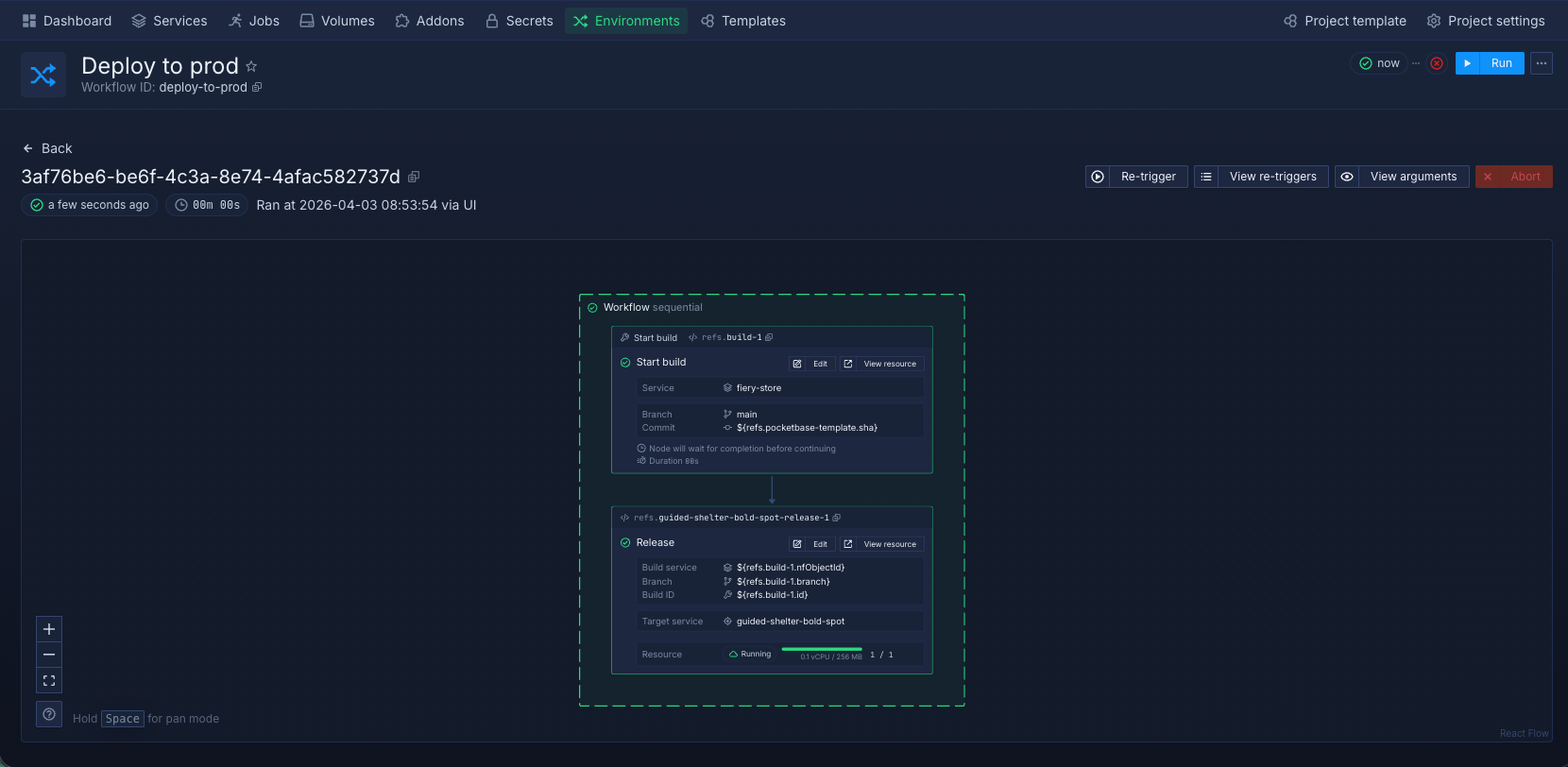
The workflow executes and you can monitor its progress in the run view.
Use Git triggers to run workflows
You can add Git triggers in the workflow settings.
A trigger will run the workflow whenever a change to the specified repository is committed.
You can include:
- Branch and pull request rules to only trigger on commits to specific branches or pull requests
- Path rules to only trigger on changes to specific directories or files in a repository, or to ignore changes to specific directories or files
- Commit message ignore flags to skip runs for commits with messages that contain certain strings
You can use references to obtain the values of Git triggers in your workflow nodes.
Use cron schedules to run workflows
Workflows can run automatically on a repeating schedule. This is useful for regular deployments, periodic maintenance tasks, or refreshing test environments.
To add a cron trigger:
-
Open your workflow
-
Click the plus sign or Add trigger
-
Select Cron schedule from the Kind dropdown
-
Enter a cron expression in the Schedule field (times are UTC, minimum interval is 10 minutes)
-
Save the trigger
-
Save the workflow
Each workflow can have one cron trigger.
For example, 0 * * * * runs once an hour. Runs follow the workflow's concurrency policy.
Use the trigger controls to pause the schedule or all automatic triggers. Skipped scheduled runs are not replayed when you resume.
Run a workflow using a webhook
Treat the URL as a credential. Anyone with the URL can request a workflow run.
To start a workflow with a webhook:
- Add a Webhook trigger.
- Copy its Webhook URL.
- Save the trigger.
- Save the workflow.
- Send a GET or POST request to the URL to start a workflow run.
Pass arguments in the URL query string for either method. Northflank ignores arguments in a POST body.
Git trigger parameters
Webhook requests can supply Git trigger values, such as the branch and commit to build.
Use Trigger reference from the Git trigger form as the parameter prefix. Add a dot and the field name:
| Parameter | Value |
|---|---|
<git-trigger>.branch | The branch name |
<git-trigger>.sha | The commit SHA |
<git-trigger>.pullRequestId | The ID of the pull request |
<git-trigger>.repoUrl | The repository URL |
This request sets frontend to branch feature and backend to branch develop:
https://webhooks.northflank.com/workflows/<TOKEN>?frontend.branch=feature&backend.branch=develop
Workflow name and description
Supply optional name and description query parameters to label the workflow run. If you omit name, Northflank shows the run ID.
Other values
Other query parameters become workflow arguments. For example, ?foo=bar makes ${args.foo} resolve to bar.
Use query parameters for non-sensitive argument values. Store secrets in the workflow's argument overrides instead of the URL.
Pause or replace a webhook
Turn off Enable trigger to pause this webhook. Save the trigger and workflow. Pausing all workflow triggers also stops webhook runs. For a paused trigger created in the editor, requests return HTTP 404 and do not start a run.
To replace the URL, click Regenerate in the trigger form. Save the trigger and workflow. Update callers to use the new URL.
View runs
The state of the current or most recent workflow run is indicated in the workflow header. This can be clicked to view the currently running workflow, or the list of previous runs.
Workflow run statuses
Pending: the workflow is scheduled to run
Running: the workflow is currently running
Success: all of the nodes within the workflow completed successfully
Failed: some or all of the nodes within the workflow failed to complete successfully
View workflow runs
Click on a workflow and click view runs.
This displays a list of previous and current workflow runs and their status. You can also see when the workflow was run, and when it was completed.
Open a run to inspect its nodes. When View diff is available, you can inspect and download recorded resource changes.
Node statuses
Pending: the node or workflow will run when previous steps are executed successfully
Running: the node or workflow is currently being executed
Waiting: the node is waiting for an action to be completed, will eventually timeout unless it receives a successful response
Retrying: the node has failed on previous runs, but is being executed again (up to 3 attempts)
Success: the node or workflow has completed successfully
Failed: the node or workflow has failed to execute, or exceeded 3 retries
Re-run a workflow
You can rerun a workflow with the configuration from a previous run. It uses the same arguments unless you override them.
-
Open your project's Dashboard and select the environment that contains the workflow
-
Click on a workflow
-
Click View runs in the sidebar
-
Click the Re-trigger icon on the run you want to rerun
-
To change argument values, open Argument overrides and enter the new values
-
Click Re-trigger run
Next steps
Use canary rollouts
Release new versions progressively by shifting traffic between the stable and canary versions of your service.
Set up preview blueprints
Create preview blueprints to automatically create preview environments for your branches and pull requests.
Manage preview blueprints
Manage active previews, manually create test environments, and configure automatic cleanup.
Run migrations
Run database migrations and update your deployments simultaneously when you update your schema.